

Two-factor authentication (2FA) is now supported in WorkBench, Web Access, Project Manager, Web Services Interface, the API and the Toolsuite applications. This adds a new layer of security.
Setting up 2FA
The setup of 2FA is simple:
- Configure the cradle.ini/.cradlerc file to work with your email server
- Ensure user profiles contain email addresses
- Configure the 2fa_config file
These are detailed below.
Configure the cradle.ini/.cradlerc Configuration File
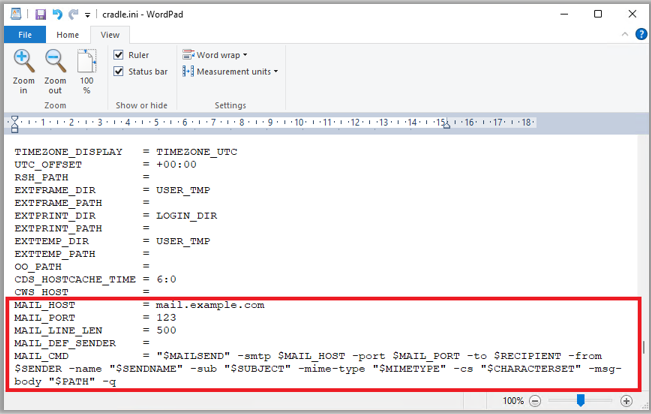
To be able to receive 2FA codes, the Cradle server must be configured to work with your mail server:
User Profiles
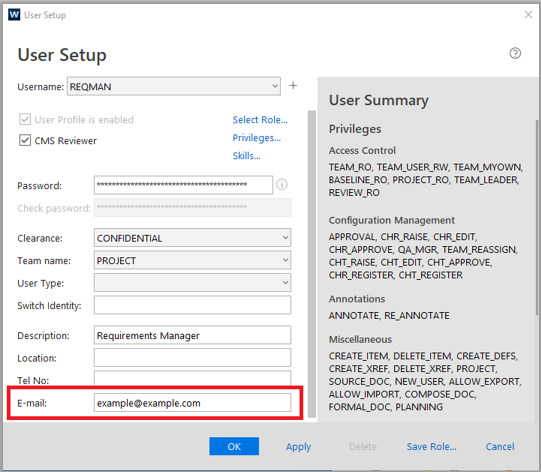
2FA uses the email address associated with the user’s Cradle User Profile, so you need to ensure the user’s email address is configured correctly:
2FA Configuration File
2FA is configured by the System Administrator using the 2fa_config file. This file is in CRADLEHOME\admin.
Setting USE_2FA to true, enables 2FA for the Cradle components.
2FA Configuration File Attributes
This file contains the following attributes:
- USE_2FA – Flag which confirms if Cradle components will use 2FA. Default – false.
- TIMEOUT – Contains the time in minutes for how long the Cradle components will remain active for the Cradle user to enter the 2FA code before being terminated. Default – 2.
- PROJECT_SCOPE – Defines which Cradle projects require 2FA. If empty, 2FA is applied to all projects. If defined, this should be a comma separated list of project codes, e.g. DEMO,TEST.
- ENABLE_CMDLINE_TOOLS – Controls whether Cradle command line utilities are permitted to run when 2FA is enabled. By default, command line tools are blocked under 2FA to prevent bypassing security. Default – false.
- MANAGER_BYPASS – Determines whether the MANAGER account is exempt from 2FA checks. Due to its elevated privileges, it may be desirable to skip 2FA for this account, but for higher security it can also be included. Default – false.
- EMAIL_FORMAT – Used to set the format of the email that is sent containing the 2FA code. The possible values are plain (plain email text only) or template (use the web_auth.eml template).
- EMAIL_SUBJECT – Subject used in the 2FA email.
- EMAIL_MESSAGE – Message used in the 2FA email.
Login using 2FA
When you attempt to login as a user with 2FA you are prompted to enter a 6 digit code.
The following example is in WorkBench:

The following example is in Web Access:
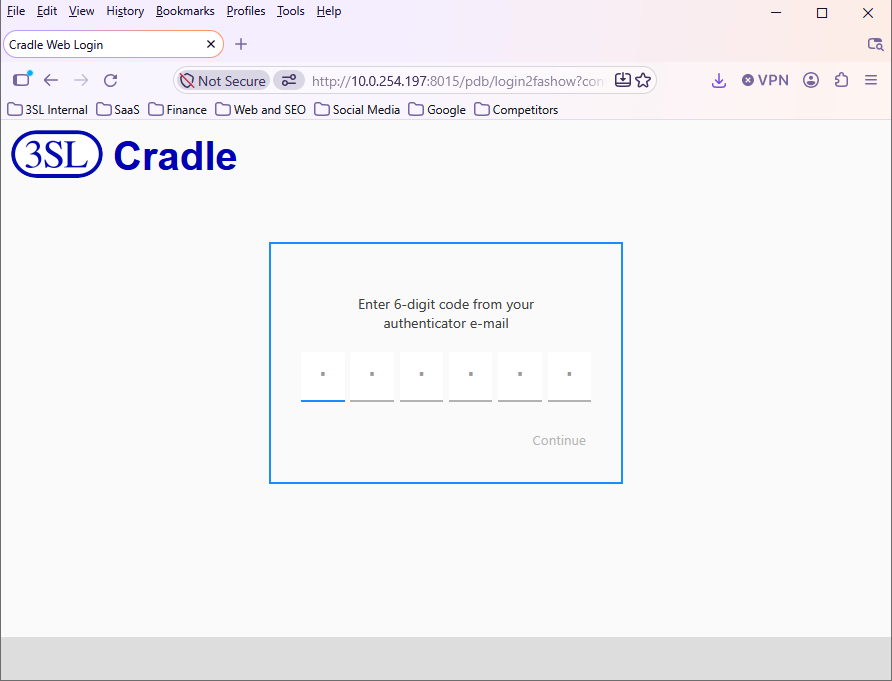
Please note if you enter the code after the 2FA timeout setting, a Cradle Web Server 500 Error will be displayed.
The 2FA code is sent to the email address that is defined in the User Profile of the user you are logging in as. Once you have entered the correct code, click Continue to login.