Change Requests (CHRs) which are concerned with general statements of the issue to be addressed, or the problem to be solved, or the defect to be corrected
Change Tasks (CHTs) which are concerned with the mechanics of implementing and effecting the change(s) required by one or more CHRs
Both CHRs and CHTs are distinct types of items in the Cradle database and can contain any number of frames. As with standard item types, CHRs and CHTs are provided with some default frames to populate when raising either the CHR or CHT. These are TEXT and NOTES where TEXT is a mandatory frame as this provides the detail.
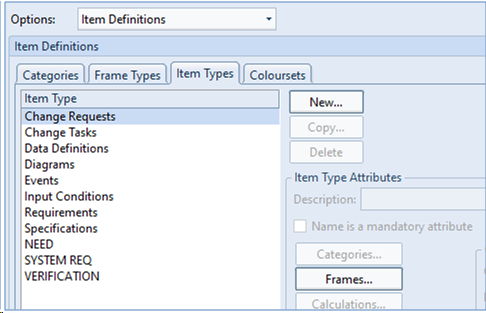
However, you can also specify in Project Setup whether these item types have any additional frames defined. This can be:
Text
Graphic
Word
PDF
or any other format defined as a frame type:
Project Setup showing Item Types tab
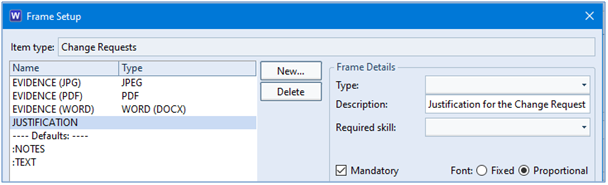
Frame Setup dialog for Change Requests
You can also specify the frames to be mandatory so that the CHR or CHT cannot be raised until those frames are populated. As you can see in the example above the Mandatory checkbox is selected for the JUSTIFICATION frame.
This allows you to ensure that all information is provided for your formal changes.
Welcome to the October 2022 newsletter from 3SL that provides a mixture of news and technical information about us, and our requirements management and systems engineering tool “Cradle”. We would especially like to welcome everyone who has purchased Cradle in the past month and those who are currently evaluating Cradle for their projects and processes.
We hope that we, and Cradle, can deliver real and measurable benefits to all of the exciting development projects that we see every day through your regular contacts with our support team. If you have any problems, please do not hesitate to contact 3SL support here.
32-Bit vs 64-Bit
For our next major release – Cradle-8.0 we are considering stopping support for:
32-bit Windows
32-bit Microsoft Office
32-bit Linux
We would like to understand if this affects any of our current customer’s and potential prospects. If you can find the time, please provide your views/opinions to our Support Team at support@threesl.com.
Please note that Cradle-8.0 will not be released until mid 2023 at the earliest.
Upcoming Training Courses
We still have places left on our two remaining Cradle training courses this year.
The next scheduled course is the Cradle Document Publisher course. The dates are 17th to 20th October. Document Publisher is a Windows® based publishing tool that allows professional documentation to be produced directly from the data within your project’s database. Fully understanding how to configure templates and data manipulation will offer the best output for you to provide to your stakeholders, customers, regulators and other interested parties.
The last scheduled course of 2022 is the Cradle Requirements Managementcourse. The dates of this course are 21st to 24th November. This is a great opportunity for small teams, or a couple of new team members to get started with RM and Cradle.
Both courses are conducted over four ½ days.
Don’t miss out! To book a place on one of our online courses please click here!
Training Course Calendar 2023
We are currently preparing our training course calendar for 2023. This will be available soon.
The courses available in 2023 are:
Project Administration:Cradle Training Courses
January and July
User:
January and July
Requirements Management:
February and August
Document Publisher:
March and September
Risk Management:
April and October
Test Management:
May and November
Configuration Management:
June and December
Dates to be confirmed.
Making SWIFT Payments
Recently we have noticed some minor issues with receiving swift payments. If payments are to be made by SWIFT using a MT103 instruction, please ensure Field 71A is set to OUR instead of SHA.
We also paid our respects to Her Majesty Queen Elizabeth II.
Thank You
3SL would also like to thank all of our customers/evaluators/prospects who have found the time to send feedback on our services, e.g. training courses, Cradle support etc. We understand how busy you are, but these responses help us to both monitor and look to improve the services we provide to you. Thank you.
Are you upgrading/updating your servers? Here we explain moving Cradle projects from an old server to a new server. There are two ways to do this:
Moving projects to a new server with the same Cradle version
Moving projects to a new server and upgrading to a new Cradle version
Both of these scenarios are detailed below.
Please note if users have Personal definitions, e.g. if they are are using Sessions, these will either need to be copied or exported and imported to the new server. Personal definitions are located in $CRADLEHOME\admin\definitions\personal and the folders have the users names. If copying the definitions they need to be placed in the same location within the personal folder.
New Server with Same Cradle Version
If you are not upgrading Cradle at this time, this is really simple to do.
Create the Cradle projects on the new server with the same project code as previously created on the old server. Ensure the pathname is the location where the databases will be stored.
Create Project dialog
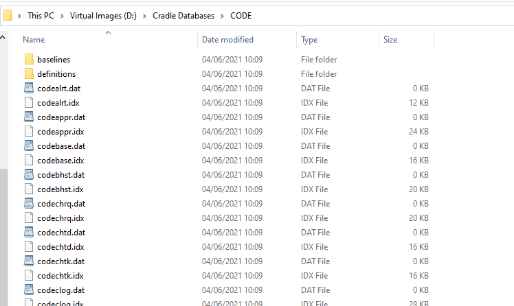
Copy the contents of the Cradle projects on the old server to the new server. The directory contains all of the data including user profiles, project setup, definitions etc.Project Contents
New Server with New Cradle Version
If you are upgrading the Cradle version as well as migrating to a new server, this is slightly more complex.
The safest method (although can be time consuming) is to create export files of the existing Cradle databases and then import them into the new server installation.
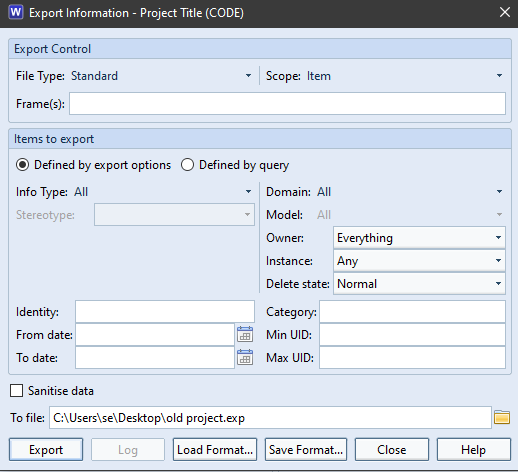
When exporting the information from the “old” server, ensure Owner is set to Everything as shown below:
Once the new version of Cradle has been installed on the new server, you need to create the Cradle projects on the new server.
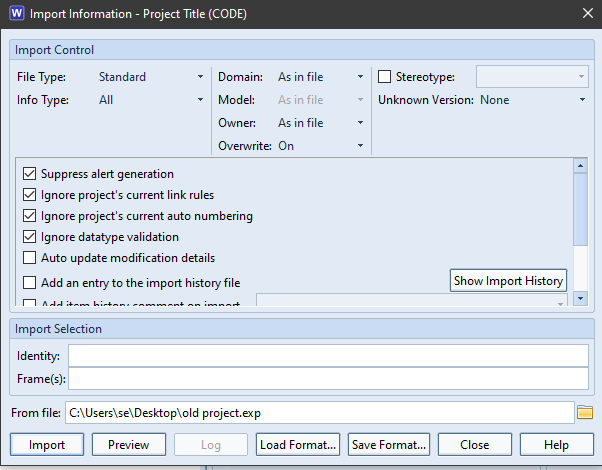
In the new project you can then import the data exported from the old server . When importing, ensure Owner is set to As in file, Overwrite is set to On and the top four validation checkboxes are selected:
Repeat this for all projects
Another way to achieve this is to copy the project directories from the old server on to the new server and then manually convert the projects.
Create the Cradle projects on the new server with the same project code as previously created on the old server with the pathname being the location where the databases will be stored.
Create Project dialog
Copy the contents of the Cradle projects on the old server and overwrite the contents of the newly created projects on the new server. The directory contains all of the data including user profiles, project setup, definitions etc.
Manually run the necessary converters to ensure the new projects are in the same format as the new Cradle version installed. Please note this may be several converters if converting from a much older version.
Note: Please ensure the projects have been converted BEFORElogging in.
Welcome to the latest newsletter from 3SL that provides a mixture of news and technical information about us, and our requirements management and systems engineering tool “Cradle”. We would especially like to welcome everyone who has purchased Cradle in the past month and those who are currently evaluating Cradle for their projects and processes.
We hope that we, and Cradle, can deliver real and measurable benefits to all of the exciting development projects that we see every day through your regular contacts with our support team. If you have any problems, please do not hesitate to contact 3SL support here.
Showing Cell Titles in Views
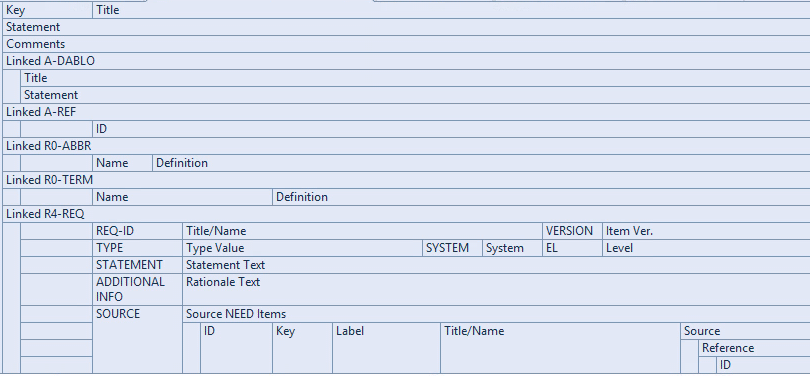
Sometimes when displaying a nested view the cell titles take up a lot of space on the screen.
Displaying Cell Titles
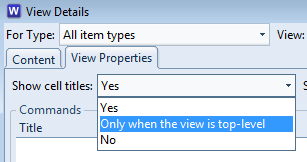
Within the View Details dialog you have the option to choose whether you want to display the cell titles:
Displaying cell titles in views
As you can see you can choose to either:
Show the cell titles
Hide the cell titles
Show the cell titles only when the view is top-level
You can change the visibility of any of the component views that are being used to show linked items. In practice, most people either hide everything or show everything.
For further information on views please see our online help page.
Help with Cradle-7.7
Following on from our recent Cradle-7.7 release, if you are not already a customer and would like more information about Cradle, you can download the software and a free evaluation licence. You can find this on our website, or you can request a webinar. If you are a customer and would like to upgrade, please contact 3SL for a Security Code and for any assistance you may require with the upgrade.
Upcoming Training Courses
We still have places available on our September Risk Management course. Learn how to identify, analyse, evaluate, treat and monitor the risks associated with activities or events within your business. This course is designed for project team leaders or managers who administer and manage risks.
To book a place on one of our online courses please click here!
Cradle offers two packages Cradle Software as SaaS and Cradle Training and Consultancy.
Software
The software package includes Cradle licences, a pre-defined schema and a comprehensive support package. This can be used in both unclassified (IL0) and OFFICIAL (certified IL3) deployments and covers the following elements:
Agile Collaboration
Application Lifecycle Development
Application Lifecycle Management
Agile Software Development
Agile Software Management
Business Analysis
Business Process Modelling
Defect Tracking
Enterprise Architecture
Integrated Risk Management
Integrated Test Management
Lifecycle Management
MBE Model Based Engineering
MBSE Model Based Software Engineering
MBSE Model Based Systems Engineering
Requirements and Testing
Requirements Engineering
Requirements Management
Risk Assessment
Risk Compliance
Risk Management
SysML Modelling
Systems Engineering
Test Execution
Test Management
Test Planning
UML Modelling
Cradle Training/Consultancy
Consultancy
Administration Training
Fundamentals Training
Advanced Lifecycle Training
Prices start from as little as £50.00 per user per month. Including email and phone support and full documentation included. Optional onsite support and training is available. This can be supplied on Windows® or Linux®.
Customisation
A wide range of user customisation is available including:
Items’ (attributes, links and properties)
Display of chosen data and layout through queries, views, forms,
Processing data to give graphs, reports, documents, metrics, KPIs/dashboards, process
CM (Configuration Management) system workflows
UI (User Interface) layout and content
Authentication and access control
Details
For details, see here:
Software
Training/Consultancy
or search for 3SL Cradle. For an overview of Cradle, see our video here: We look forward to helping you achieve success on your future projects, or migrating existing ‘manual’ or disparate works into a fully encompassed solution.
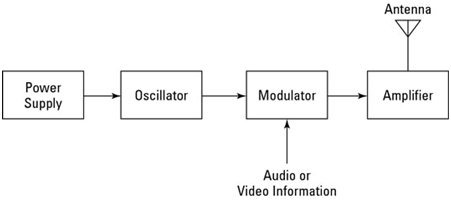
Individuals/communities can take National Radio Day as an opportunity to appreciate/celebrate what radio means to the world today. Some people might think radio has passed its prime. Although it still acts as a strong force, especially for local communities.
The first person to identify radio waves was a German physicist Heinrich Hertz in 1886. But it took about three decades for a practical receiver to be invented, which was due to the work of Italian inventor, Guglielmo Marconi. Though it started with a Morse code message from just a kilometre away, Marconi paved the way for the future of the types of messages that radio waves could carry.
Cradle provides two mechanisms to make protected copies of information, baselines and snapshots. Here we explain what each mechanism does, so you can decide if either or both of them will be helpful in your project. We also explain how each mechanism affects the overall size of your databases, and how they may affect the performance that you experience as you use your databases.
What is a Baseline?
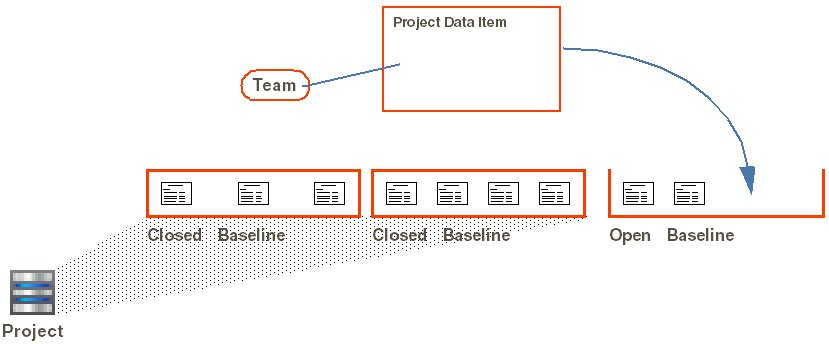
Baselines is the mechanism in Cradle’s Configuration Management System (CMS) to protect information from changes. It is a named repository for the state of a system at a specific point in time. A succession of baselines can be created over the life of a project, each containing more and more information as the project completes its sprints, iterations or phases.
Principles of Baselines
Creating Baselines
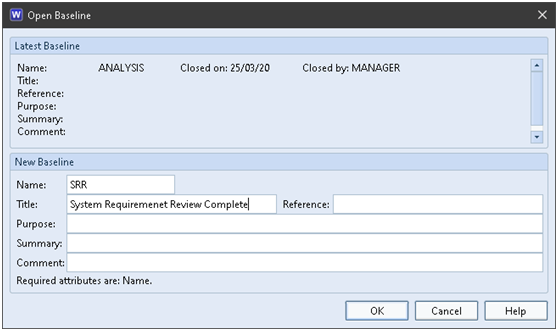
Each baseline has a unique name and some optional details:
Open Baseline Dialog
Items can be registered into an open baseline and are given a version number: 01, 02, 03 …. The version number assigned to each item is either 01 if there are no baselined instances of that item, or it is 1 higher than the highest version already in the database.
When the baseline is closed:
Unchanged items from the previous baseline migrate into (become a part of) the new baseline
A copy of all current links (cross references) is saved with the baseline
A list of the latest items and their versions is saved for the baseline
Migration of Items
Keeping a list of the initial contents of each baseline is important. It does not duplicate the items, rather it creates a list of the items that were in the baseline when it was closed. In the future, any of these items can migrate out of the baseline they were registered into and become part of a new baseline if they have not been superseded by a new version of the item that has already been registered into that new baseline. Therefore, at that future time, items that were marked as being part of one baseline will become marked as being part of a different, newly closed, baseline. The lists created when baselines are closed ensure that it is always possible to know what was part of a baseline when it was originally closed.
For example
A baseline A is created with items I1 and I2, both of which will be version 01. So the database contains:
Item I1, version 01, draft <empty>, baseline A
Item I2, version 01, draft <empty>, baseline A
If item I1 is to be changed, then a new instance of the item will be created and the database will contain:
Item I1, version 01, draft <empty>, baseline A
Item I1, version 01, draft A, baseline <empty>
Item I2, version 01, draft <empty>, baseline A
When the modified item I1 is registered into a new baseline B, the database will contain:
Item I1, version 01, draft <empty>, baseline A
Item I1, version 02, draft <empty>, baseline B
Item I2, version 01, draft <empty>, baseline A
When the new baseline B is closed, the unchanged item I2 will migrate into baseline B and the database will contain:
Item I1, version 01, draft <empty>, baseline A
Item I1, version 02, draft <empty>, baseline B
Item I2, version 01, draft <empty>, baseline B
If a new item I3 is created and item I1 is changed again and a new baseline C is created, and the items are registered into it and the baseline is closed, then the unchanged item I2 will migrate into the new baseline and the database will contain:
Item I1, version 01, draft <empty>, baseline A
Item I1, version 02, draft <empty>, baseline B
Item I1, version 03, draft <empty>, baseline C
Item I2, version 01, draft <empty>, baseline C
Item I3, version 01, draft <empty>, baseline C
The database will have lists of the original contents of the baselines. In this example, these lists will be:
Baseline A:
Item I1, version 01
Item I2, version 01
Baseline B:
Item I1, version 02
Item I2, version 01
Baseline C:
Item I1, version 03
Item I2, version 01
Item I3, version 01
Having these lists preserved means that Cradle can restore a previous baseline if required.
Using Baselines
The latest baseline is automatically available. It provides read-only access to the latest version of all baselined items and the links between them.
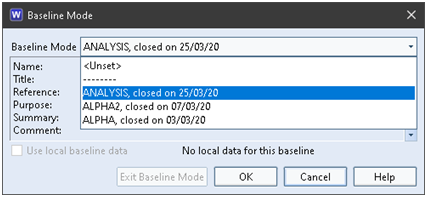
You can use baseline mode to browse a previous baseline read-only:
Baseline Mode Dialog
In baseline mode, you see only the items and links that were in effect when your chosen baseline was closed. So you are looking at the database as it was in the past, potentially many months or years ago. Everything that you see (including queries, matrices, graphs, pivot tables and published documents) uses that old baseline.
Database Effects
Creating baselines increases the size of your database which affects its performance:
Each baseline adds new versions of changed items, but reuses unchanged items from previous baselines
Creates a copy of all active links
Over time, having many baselines will:
Slightly increase the number of items in searches, reducing query performance
Greatly increase the time to follow cross-references, reducing the performance of queries and views, and a wide variety of other database operations, including reordering, split and merge, finding and filtering linked items for traceability/coverage views, reports and documents
In a notable example, a database with ~60,000 active links had over 41,000,000 total links due to over 650 baselines. This slowed all link-related operations as Cradle had over 650 instances of each link from which to isolate the links to be used.
What is a Snapshot?
A snapshot is a copy of all the information in a database. Its contents can be viewed, read-only, at any time in the future. A succession of snapshots can be created over the life of a project. In effect, a snapshot is simply an online backup, a copy of a database.
Creating Snapshots
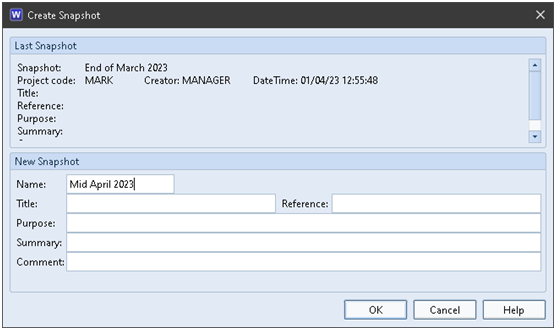
Each snapshot has a unique name and some optional details:
Create Snapshot Dialog
A snapshot is a copy of an entire database. When a snapshot is created, everything in a database, including all its baselines and definitions (excluding Personal and System scope) is copied into a separate area. Every snapshot is separate from all other snapshots and separate from the live database.
Creating a snapshot is similar to making a backup copy of the database, except that this backup is directly accessible from within Cradle.
Using Snapshots
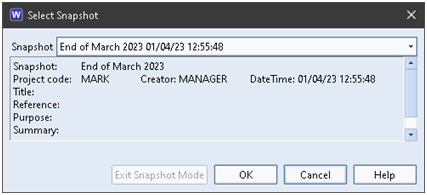
You can select a snapshot to browse read-only:
Select Snapshot Dialog
When you select a snapshot, Cradle is no longer working in the live database, but instead it is working in your chosen snapshot (copy) of that database. Everything that you see (including queries, matrices, graphs, pivot tables and published documents) is in that copy of the database.
Since a snapshot is a copy of an entire database, a snapshot can contain baselines. Therefore, you can:
Select a snapshot
Enter baseline mode in that snapshot
Database Effects
Creating a database has no effect on the size of a database since it simply takes a copy of that entire database, whatever it is, and including all of its baselines and definitions.
Since it copies everything, more disk space will be used by creating a snapshot of a database than when a new baseline is created inside that database. However, the number of items and links inside the snapshot are the same as the numbers inside the original database.
Baselines vs Snapshots
#
Characteristic
Baseline
Snapshot
1
Summary
Creates a new approved set of items and links in a database that can be viewed RO.
Copies an entire database and related definitions to create a new database that can be viewed RO.
2
Purpose
Record the next stage in the development of a project.
Make an online backup of everything.
3
User Benefit
RO view of previous baseline that can be used for queries, view data, run metrics, publish reports or documents.
RO view of everything in the database as it was in the past, for queries, view data, run metrics, publish reports or documents.
4
Process Related
Baselines are often taken just before or after major process milestones, such as URR, SRR, PDR, CDR, PRR, TRR or ORR.*
None. These are purely for data integrity and as a convenience for having permanent access to the database at a particular time.
5
Limits
Only contains information approved in the CMS and the links between them.
We are pleased to announce the release of Cradle-7.7 which is available now for download from the downloadssection of the 3SL website. This is the latest version of Cradle.
Cradle-7.7 splash screen
3SL customers with active maintenance have been sent an e-mail notification, and details of which of their enhancement requests and bug reports are included in this new release. This is a significant Cradle release that increments the Cradle minor version number from 7.6 to 7.7. This means that the Security Codes for Cradle-7.6 or earlier will NOT work with this new Cradle-7.7 release. Therefore, if you want to upgrade to Cradle-7.7 then you MUST contact 3SL Support and request a Cradle-7.7 Security Code since your existing Cradle-7.6 Security Codes will NOT work with this new release.
New Cradle-7.7 Capabilities
This release contains a range of new capabilities, including:
Snapshots
Metrics added to graphs
New header option in views
New reports
Annular dial type added to Dashboards
Precision option added to Dashboards
Ability to test email setup from User Preferences
These new capabilities are shown below. For further information please refer to the Release Notes.
Snapshots
A snapshot is a read-only copy of all the information in a Cradle database at a specific point in time that can be viewed, in isolation, at any point in the future.
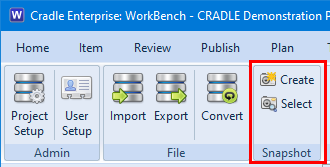
Snapshots can be created and selected from the Project tab in WorkBench:
Snapshot options in WorkBench
Snapshots can also be created via the command line using c_prj.
When a user selects a snapshot, their access to information, cross references and definitions are determined by the contents of the user’s profile in the database, regardless of whether or not the user has a profile in the current snapshot and regardless of the contents of that user profile (if any) in the snapshot.
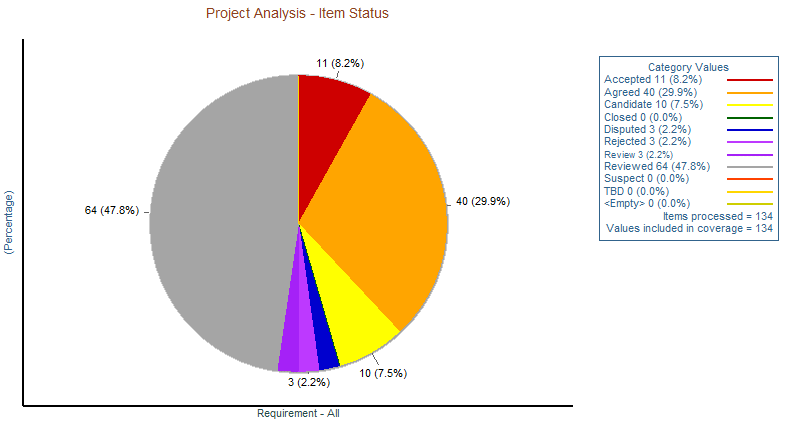
Cradle-7.7 includes a new type of graph which shows metric coverage or count of items with different categories set or unset. This is called a metric graph. An example is shown below:
Example Metrics Graph in Cradle
Header Option in Views
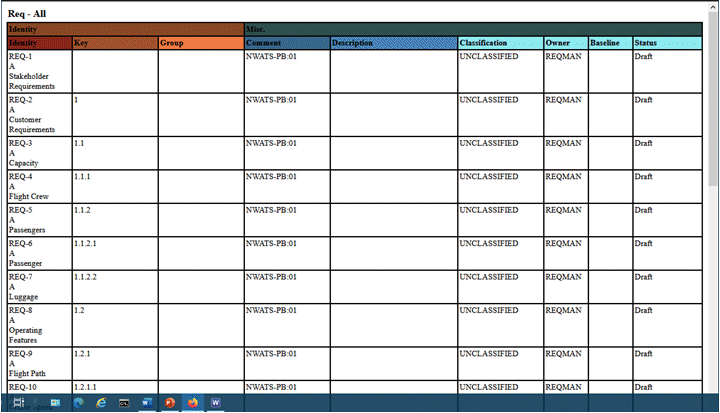
A new Header option is now available in the dialog. This provides a way of showing grouped and coloured headings when output. Example output is shown below:
Example output from WorkBench showing a coloured header
New Reports
A new Baseline Summary List report has been included in this release. This outputs each baseline on it’s own row in a table.
The Baseline Summary report has been renamed to Baseline Summary Compact.
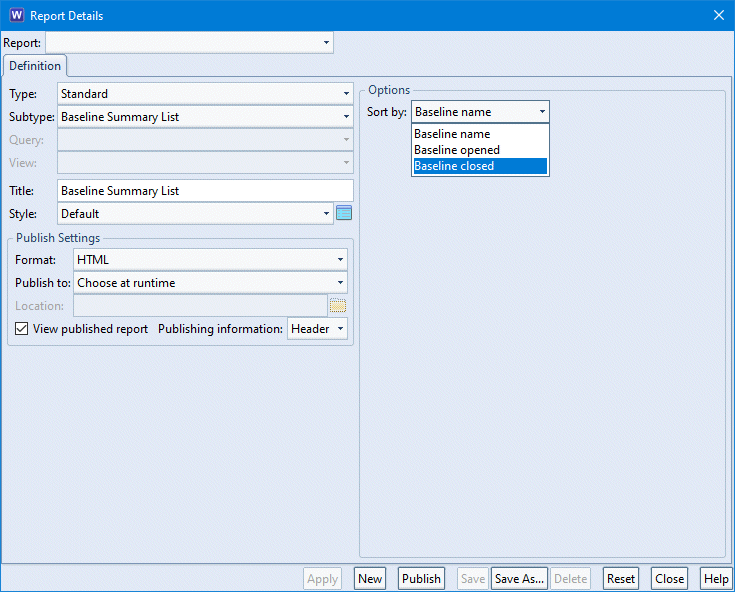
A Sort by filter has also been added to both the Baseline List report, Baseline Summary List report and the Baseline Summary Compact report. This provides the option to sort by the baseline name, when the baseline was opened or when the baseline was closed.
Report Details Dialog showing Sort by options
Annular Dial Type in Dashboards
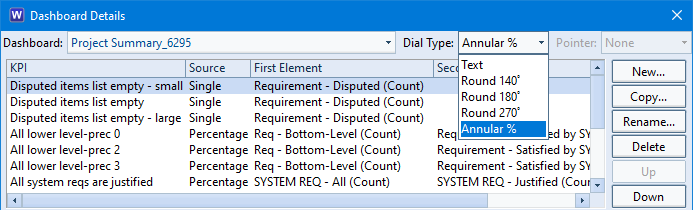
A new dial type has been added to dashboards – Annular %.
Annular Option in Dashboards
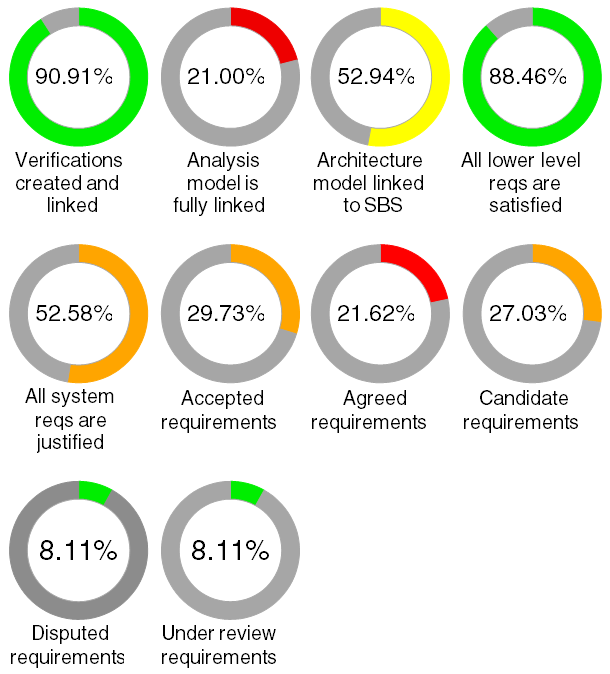
This is an annular percentage of a single dashboard bandset within which the KPI resides:
Example Annular dashboard
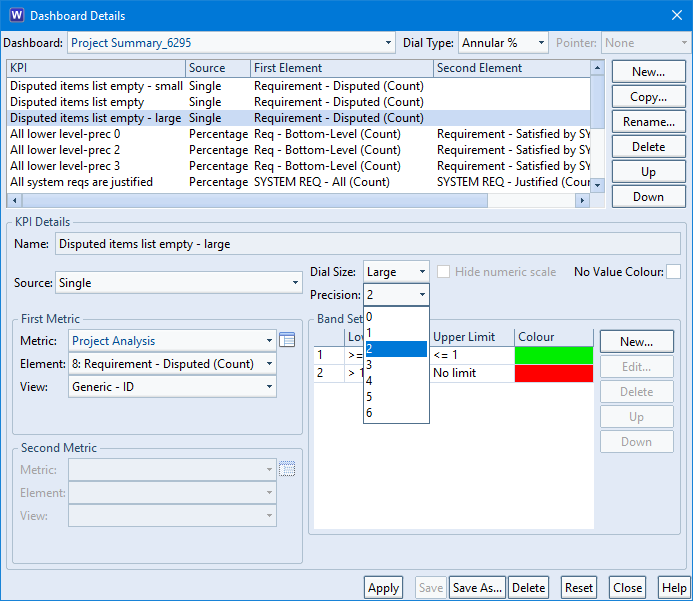
Precision Option in Dashboards
A Precision option has also been added to dashboards. This sets the count of numbers displayed around a dashboard dial:
Precision Option in dashboards
Test Email Setup
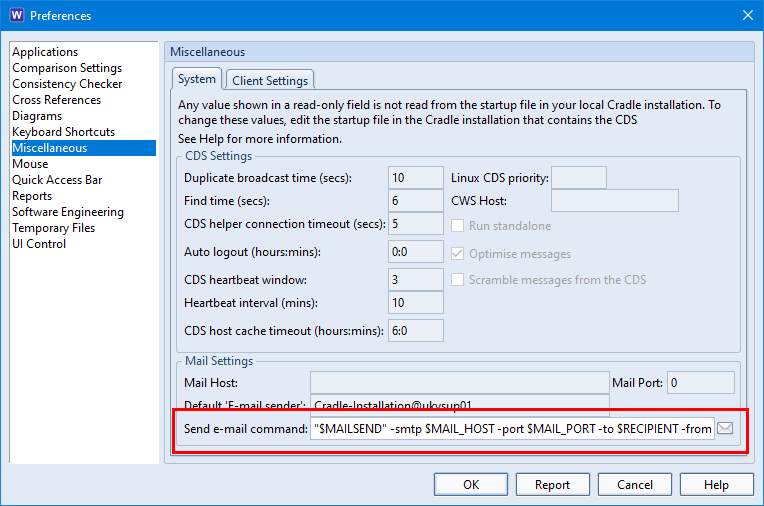
The setup of emails can now be tested from User Preferences by selecting the new Test Email button:
User Preferences showing Test Email button
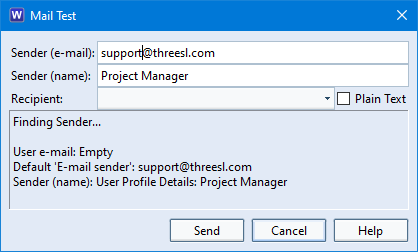
Pressing the Test Mail button produces the Mail Test dialog where you choose an email recipient and whether you want to send the test email in plain text.
Mail Test dialog
Please note the only user names shown in the Recipient drop down are Cradle users in the project who have an email address defined in their User Profile.
Download
You must contact 3SL for new Security Code(s) for Cradle-7.7. Cradle-7.7 will not accept Security Codes from Cradle-7.6 or any previous release.
Cradle clients (WorkBench, Web Access, Document Publisher for instance) and server (Cradle CDS) versions cannot be mixed. Therefore, you must upgrade all Cradle installations to 7.7.
Cradle-7.7 databases do not have the same format as Cradle-7.6 databases. Hence the Cradle-7.7 release includes a database converter for the transition from Cradle-7.6 to Cradle-7.7. Full details are available in the 7.7 release notes, and updated manuals in addition you can always contact support@threesl.com .
Single User Products
Please note that there are no maintenance services for single-user Cradle products. Therefore, if you have purchased any of the single-user Cradle-7.6 products:
Cradle-RM Desktop
Cradle-RM Pro
Cradle-SE Desktop
Cradle-SE Pro
then you will not be able to request a new Cradle-7.7 Security Code. If you want to update your single-user Cradle system to the new Cradle-7.7 release, then you must buy the new Cradle-7.7 release.
Help with Cradle-7.7
In conclusion, we’re pleased with the new capabilities in Cradle-7.7 most importantly we hope you will benefit by upgrading. If you are not already a customer and would like more information about Cradle, you can download the software and a free evaluation licence, find more on our website, or request a webinar. If you would like to read some independent reviews feel free to use your favourite search engine or take a look at Capterra.
Upcoming Training Courses
We still have places available on our August Requirements Managementtraining course. The dates are 15th to 18th August. This is a great opportunity for small teams, or a couple of new team members to get started with RM and Cradle. Don’t worry if you can’t make the August RM course, we are holding another one in November.
In September we then have our Risk Management course. Learn how to identify, analyse, evaluate, treat and monitor the risks associated with activities or events within your business. This course is designed for project team leaders or managers who administer and manage risks.
To book a place on one of our online courses please click here!
We have created some links between Cradle items but we only want to see a filtered set of these links in our table.
Rationale
Cradle has a unique ability to follow cross referencestransitively. This means that although an item might not be directly cross referenced from it’s source, it might be linked indirectly through another item/item type.
Cradle also has the ability to name cross references referred to as link types and even group sets of link types together referred to as link groups.
Combining these features can allow flexibility for the output of items that have some relationship to the source which will reduce the number of direct cross references required.
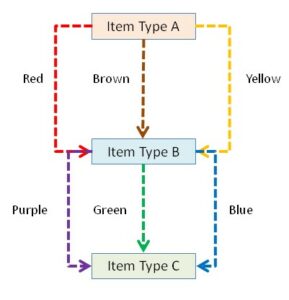
For example, we would like to show dependencies between item type A and item type C but ONLY those that have a yellow and blue link type.
Defined Links Between Item Types
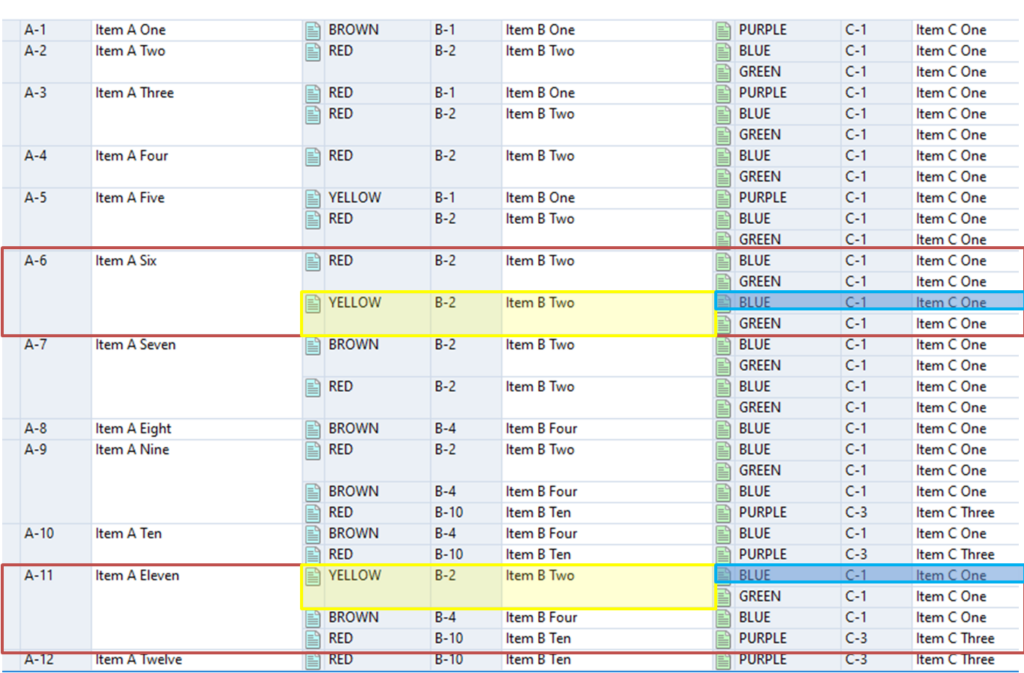
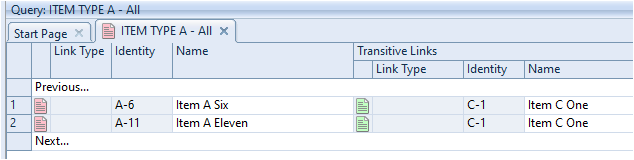
We can see in the screenshot below that only A-6 and A-11 are transitively linked to items of item type C with both a blue and a yellow link:
Direct Links in a Nested Table
Setting Link Groups
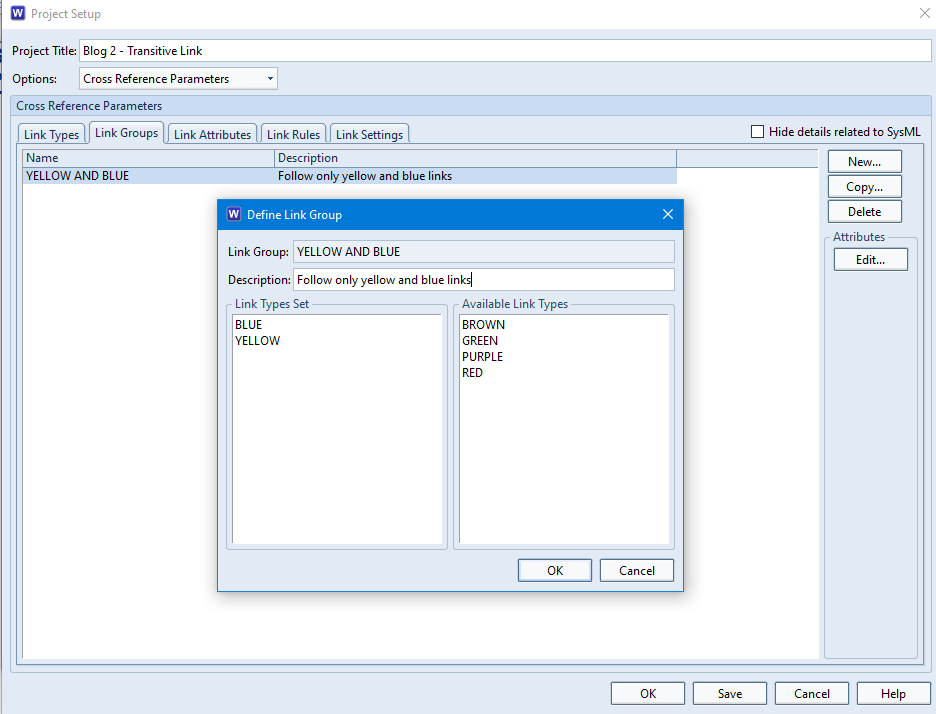
We can define a link group in Project Setup in which we can select from the available link types.
Defining Link Groups
This defined link group can be used in navigations.
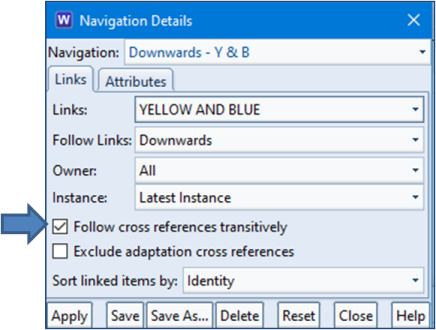
Defining Navigations
Navigations allow us to specify how we would like to follow the links that have been created between items. This is a very powerful feature as we can also specify that we would like to follow links transitively:
Defining Navigations to Follow Cross References Transitively
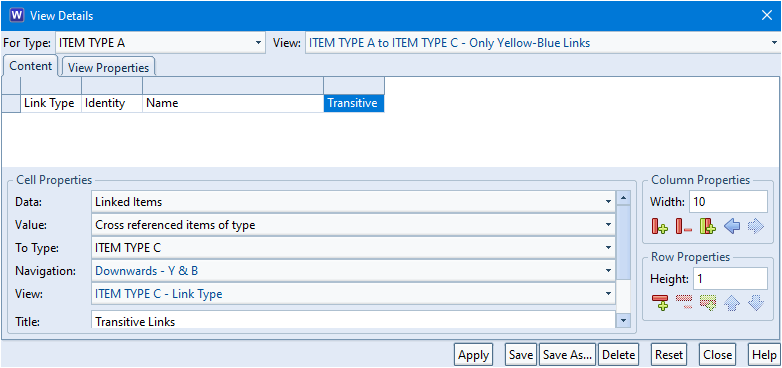
Using the Navigation in Views
We can now use the navigation to specify that we want to show links between item type A and item type C that are followed transitively but we ONLY want to show the group of links YELLOW AND BLUE. Remember that there are NO DIRECT links between these two item types. The cross references are from item type A to item type B and also from item type B to item type C:
Using the Transitive Navigation in Views
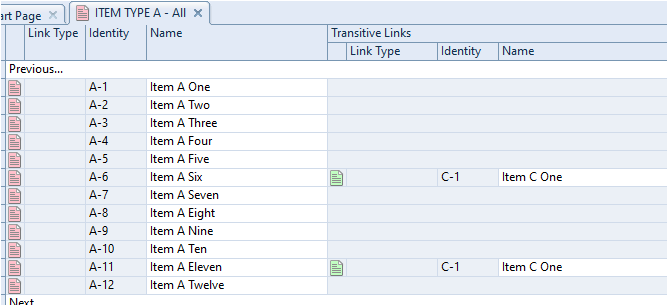
Applying this view, we can see that only the YELLOW AND BLUE links are shown in the table. The remainder appear blank:
View Showing Transitive Cross References
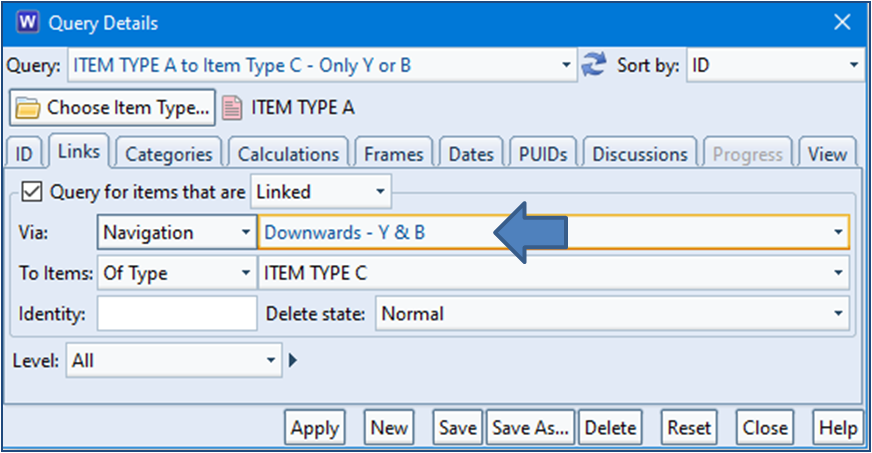
Using the Navigation in Queries
We might wish to only show items in our table that have these links in preference to showing all items and just appearing blank where the transitive link does not exist. We can achieve this in the Query Details dialog:
Filtering Items Non-Linked Items in a Query
This will now filter out of the list any items that do not match the navigation criteria:
Link Table Only Showing Items Where Transitive Link Exists
Showing Path in a Tree Style
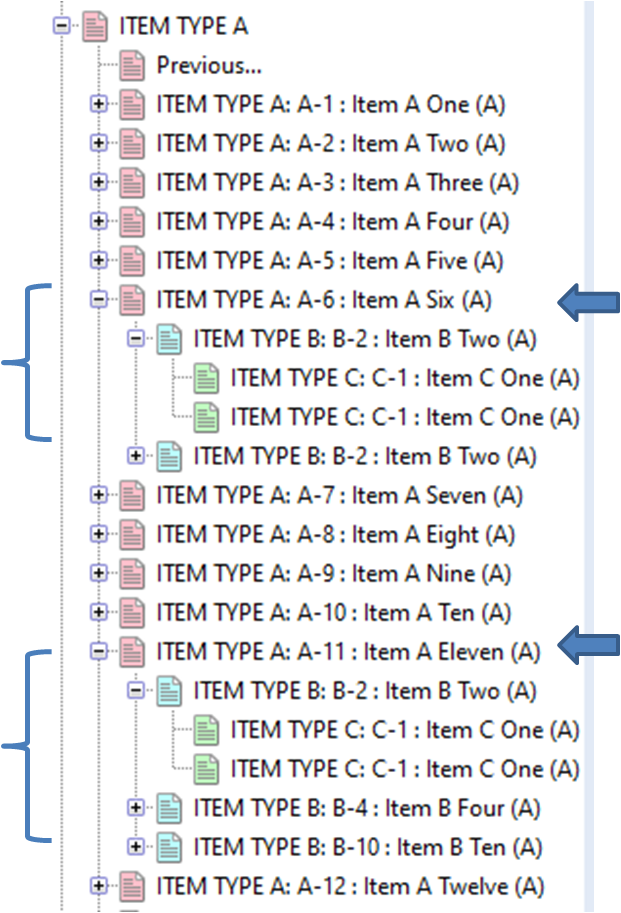
If we followed the path in a tree style showing downward links, we can see that item type A (A-6 and A-11) are not directly linked to item type C (C-1). They go through item type B (B-2):
Links shown in Tree Style
Summary
Cradle provides a unique ability to allow cross references to be followed transitively (through other items).
Transitive navigations can be applied to views and queries. This provides a very powerful filtering mechanism that allows us to show non-direct dependencies between items.
With the release of 7.7 coming very soon, we thought we’d test Cradle on additional platforms.
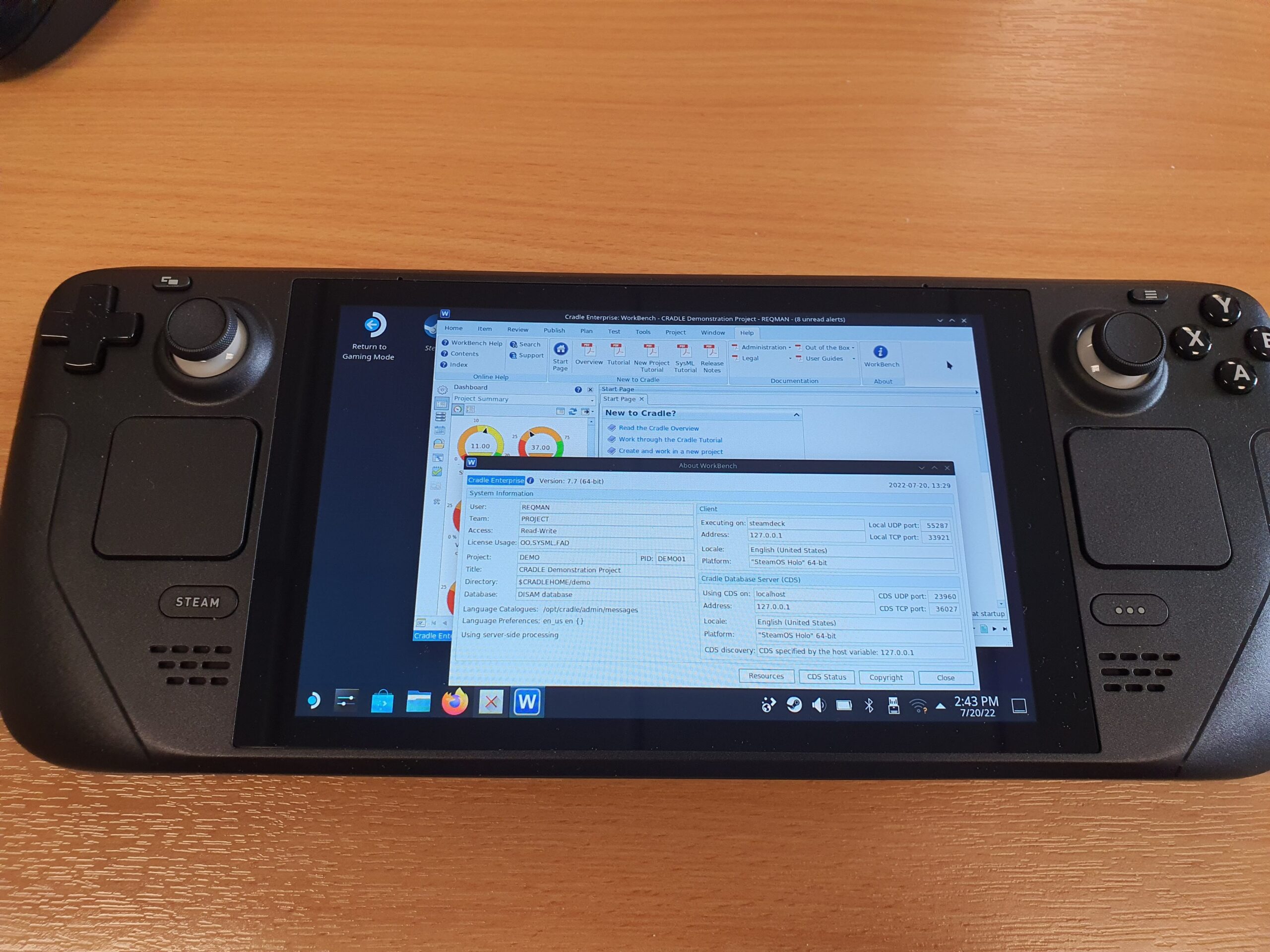
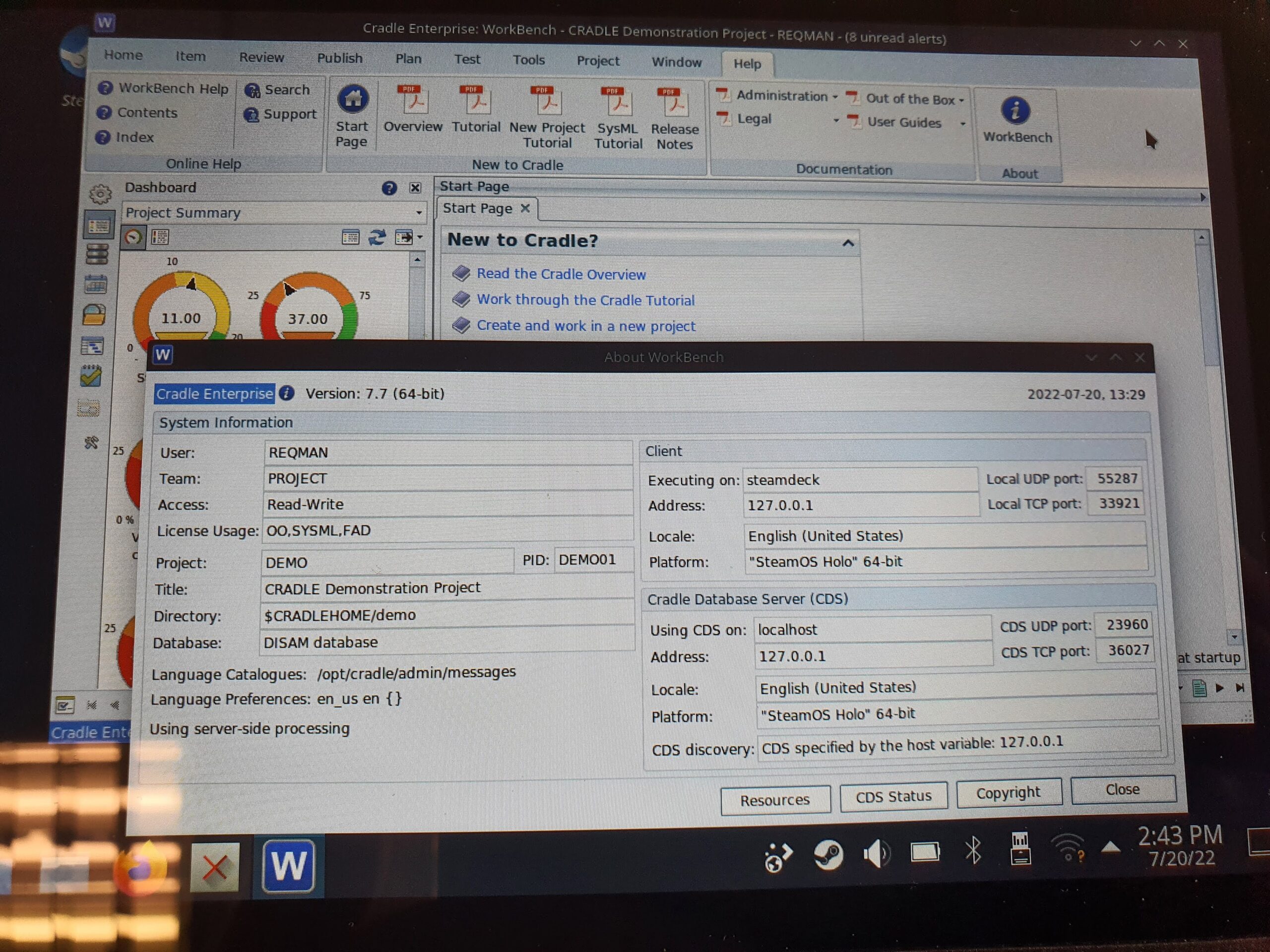
So here’s Cradle 7.7 running on a Steamdeck, in Desktop mode.
As SteamOS is based on Arch Linux, our 64 bit Linux version can be installed.
Both the CDS and WorkBench are running on this very capable device. A keyboard and mouse may work better than the on screen keyboard.
If you install the service manager (systemd script) then the Cradle Database Server (CDS) will start on boot up of the Steamdeck, so you might not want to do that if its primarily used for Steam. However, once started the CDS will stay running in the background when you switch to Gaming Mode. If you have others connecting to your CDS then they can continue to work while you improve your hand-eye coordination in your favourite game.
Although Steamdeck is not an officially supported platform, you can see Cradle does indeed run on additional platforms