
3SL Support and Call Logging

Sources of Information

3SL provides several sources of information should you or your colleagues require some assistance in your usage of Cradle.

However, should you require additional assistance, reporting a bug or suggesting an enhancement, additions to our documentation etc, you can contact 3SL directly via Support Services:

3SL Support Services

Contacting 3SL

When seeking support, we suggest assigning a Cradle liaison/Project Administrator as the users’ first point of call as they should already have undergone some form of Cradle training. If this person cannot provide an answer, then our support team will be available to assist.

3SL Support Services

Technical Support Department is available 9am – 5pm GMT Monday to Friday but often also available outside of these hours via email support@threesl.com . Our landline is +44 (0)1229 838867.

Support Call Logging

When communicating with 3SL via email, we will initially assign you a call number and a support engineer to address any problems that you might have. Please provide as much information about this call as possible so we can quickly resolve the call without any misunderstanding. The details that we like to receive are:

  • Name and full contact details
  • Area of Cradle with the problem
  • Your perceived priority for the problem
  • Operating system information
  • Cradle version
  • Means of reproducing the problem

Screenshots, error logs and data (sanitised or raw) are especially welcome to allow us to quickly and easily reproduce any problems.

Any bug reports or enhancements will be tracked in our database and you will be informed when an update is available.

Web Meetings

Should there be any confusion or further information required about a call, you or 3SL may suggest a demonstration via a Web Meeting.

3SL generally uses GoTo Meeting as our meeting platform but we can also use your corporate default platform such as Microsoft Teams.

Cradle Training

3SL offers training courses in the administration and practical usage of Cradle as:

  • Online “public” training interspersed throughout the year
  • On-site or online “private” training

These training courses cover subject areas such as:

  • System Administration
  • Project Administration
  • General User
  • Requirements Management
  • Document Publisher
  • Configuration Management
  • Risk Management
  • Test Management and Execution
  • Systems Modelling
 

3SL Cradle Cloud Services

Our Cradle “cloud” services (SaaS – Software as a Service) provide access to 3SL’s Requirements Management and Systems Engineering tool – Cradle using remote servers. This means there is no need to install the software on your company systems.

Cradle SaaS
Cradle Cloud Service

They are also a cost effective way to get up and running with Cradle.

3SL offers a choice of Cradle-Enterprise systems delivered as Cradle cloud services from a choice of servers, in a range of fixed term subscriptions, each accessed by your choice of concurrent users.

The Cradle service provides Cradle directly to the users from a remote environment managed by 3SL:

  • In a matter of days from order
  • With no software installations
  • Needing no, or little, work from your IT

What is the Cradle Service?

The Cradle service:

  • Is a self-contained set of Cradle and third party software tools
  • Is integrated with your filesystems and printers
  • Is secure and resilient
  • Needs no administration by your organisation
  • If you wish, is linked to your corporate email
  • If you wish, is run on servers exclusive to you

The Cradle service delivers the latest version of Cradle, and related applications directly to user’s desktops. Cradle and the other tools appear in windows like any other application that a user runs locally. But Cradle, and your databases, all run on remote servers inside the Cradle service.

You can have any number of databases. They, and the data inside them, are private to you. 3SL will manage the service so you can be assured that it is always available.

You can choose a lower cost shared service or a dedicated service. In the shared service, you share servers at 3SL in the UK with other subscribers, keeping privacy of your data and databases. In a dedicated service, 3SL creates a virtual private cloud (VPC) of servers using a third party hosting provider that are exclusive to you and located in any geographic area that you choose.

All databases are backed up automatically with a 3 hour RTO (Recovery Time Objective) and an 8 hour RPO ( Recovery Point Objective). Backups are held for 8 months.

Cradle Subscriptions

The Cradle system types available as a subscription are:

  • Cradle Enterprise-RM Basic – requirements management including the ability to generate metrics and dashboards
  • Cradle Enterprise-RM Pro – requirements management including the ability to generate metrics, dashboards and produce quality documentation
  • Cradle Enterprise-SE Basic – systems engineering including systems modelling and the ability to generate metrics and dashboards
  • Cradle Enterprise-SE Pro – systems engineering including system modelling and the ability to generate metrics, dashboards and produce quality documentation

The Cradle subscriptions can be packaged into simple fixed term durations ranging from one month to sixty months. This allows you to budget and ensure cover for a whole host of proejcts. You will be free to finish or renew as your project needs at the end of the term.

Cradle SaaS in a Nutshell

  • Choose from a range of Cradle Enterprise systems to provide the capabilities you need
  • Choose a shared or dedicated host environment
  • Specify the number of users that you need to have access to the environment
  • Specify how long you want the service for
  • Work in any number of databases
  • Upload and download data and results easily from your local IT systems
  • Print directly to your local devices if needed
  • On-boarding service to help you get started
  • Off-boarding service to preserve your work before your subscription ends
  • Add extra terms and change who can access the service at any time

For pricing of the Cradle subscriptions please visit our website.


Customising the Quick Access Bar

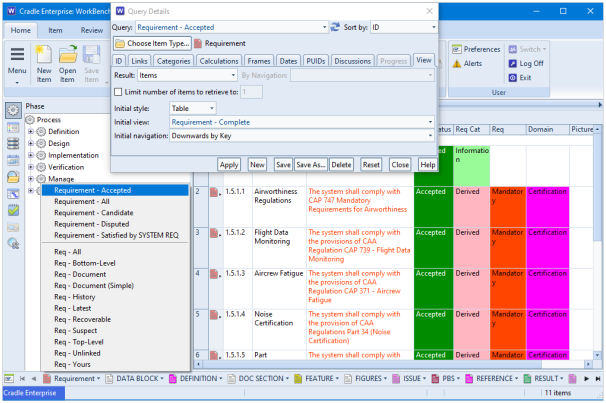
WorkBench provides a Quick Access Bar that allows you to launch queries by item type from the bottom of the WorkBench main screen. It’s intended to provide quick and easy access to all of the relevant types of information in your Cradle database.

Default Queries

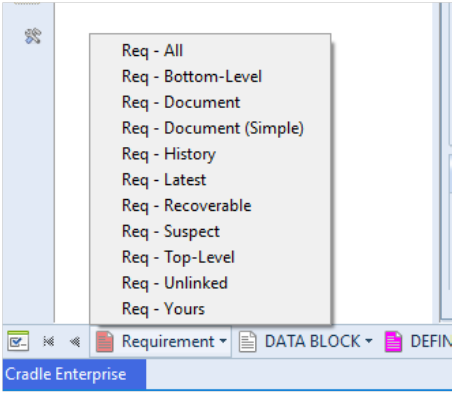
By default, WorkBench is initialised to show a standard (Automatic) set of queries each ordered by the Identity attribute

  • All – Lists all items that you can access.
  • Bottom-Level – Lists all bottom-level items that you can access. Bottom-level items are items that do not have any cross references from them to other items of the same type. For example,  they have no children.
  • Document – Lists the latest instance of items that you can access and displays them as a document. For example in Document style.
  • Document (Simple) – A simplified version of the Document query.
  • History – Lists the latest instance of items that you can access and displays them in a view showing change histories.
  • Latest – Lists the latest instance of all items that you can access. There can be many instances of each item, such as many versions of the item.
  • Recoverable – Lists all items that are in a recoverable state.
  • Suspect – Lists all items that are deemed suspect.
  • Top-Level – Lists all top-level items that you can access. Top-level items are items that do not have any cross references to them to other items of the same type. For example, they have no parents.
  • Unlinked – Lists all items that you can access that don’t have cross references to or from them from any other items.
  • Yours – Lists all items that you own.
Query options from Quick Access Bar
Quick Access Bar query options

These queries may be useful as a starter set of queries. However, it is likely that you will want to tailor the queries shown in the Quick Access Bar to meet your own project needs and use the Project queries and views to display the data.

Note that all automatic queries are ordered by Identity. You might wish to order your Quick Access Bar queries by Key, especially when working with hierarchies of items.

Adding Project Queries to the Quick Access Bar

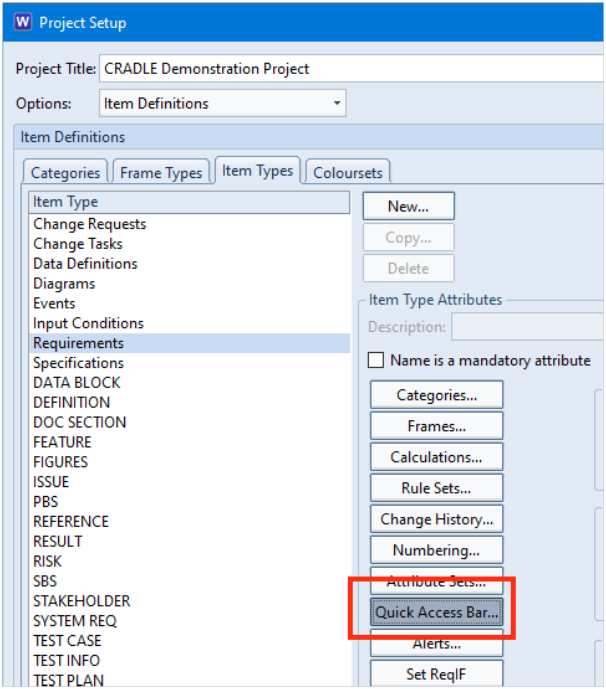
In Project Setup, you can select the item type that you wish to tailor and press the Quick Access Bar button. In this example, we will use Requirements:

Quick Access Bar option in Project Setup
Project Setup – Quick Access Bar option

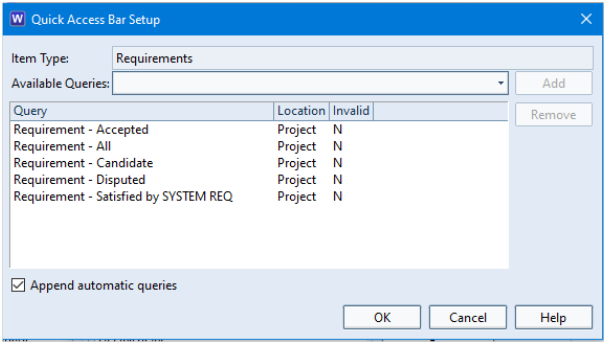
This presents you with a dialog that allows you to add up to 10 Project or System defined queries to your Quick Access Bar.

You can still show the Automatic queries by selecting the Append automatic queries checkbox:

Quick Access Bar Setup dialog

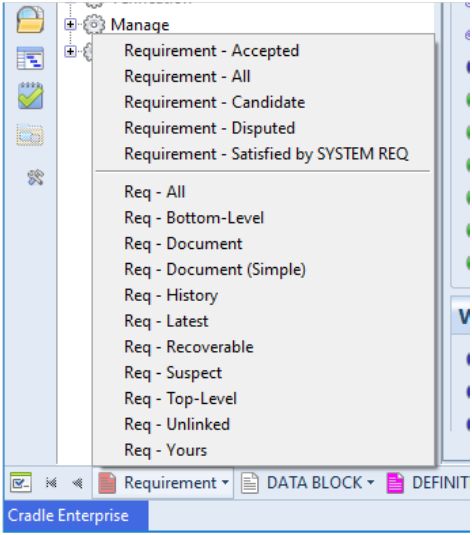
Once applied, all users in the project will see the changes to the Quick Access Bar:

Quick Access Bar showing additional queries
Additional Queries in Quick Access Bar

These additional queries will use the view as defined in the Query Details dialog.

Quick Access Bar - Query Details
Quick Access Bar – Query Details

Personalising the Quick Access Bar

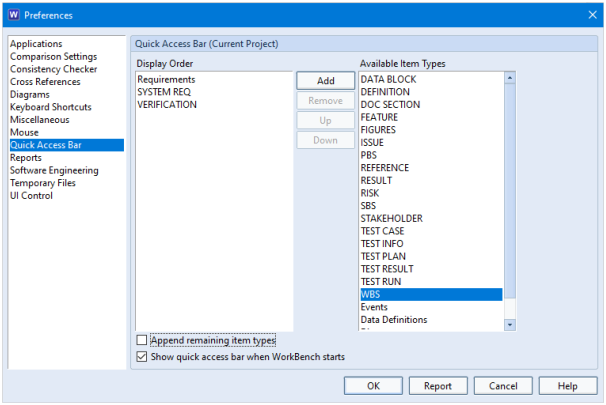
You may wish to personalise the Quick Access Bar for your own use to only show the item types that are relevant to you in the order that you wish them to be displayed. You can achieve this in the Preferences:

Preferences - QAB Option
Quick Access Bar options in Preferences

If you select the Append remaining item types checkbox, all other item types are still shown on the Quick Access Bar after the ones you have selected:

Quick Access Bar with highlighted
Quick Access Bar with highlighted item types

For further information on the Quick Access Bar functionality, refer to the help page https://www.threesl.com/cradle/help/7.7/#workbench/other/wrk_qab.htm.

Renumbering a Sequence of Incorrect Key Values

Scenario

You have captured a number of items into Cradle. However, the KEY attribute that defines the hierarchy has incorrect values. Do you have to open each item individually to correct this numbering?

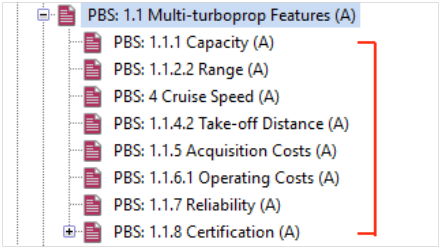
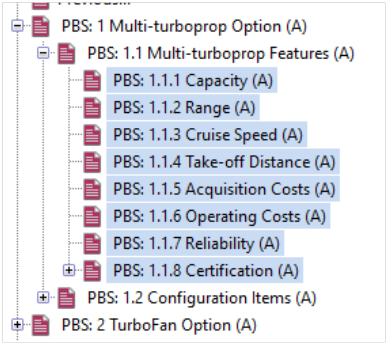
For example, the items below should have a sequence of 1.1.1 to 1.1.8:

Numbering of items in a hierarchy
Incorrect hierarchical numbering

Solution

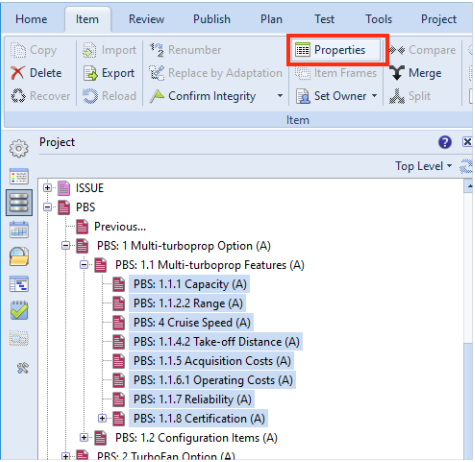
No, you can actually define the key sequence by selecting all of the items to be changed and pressing Properties:

Properties option
Properties option

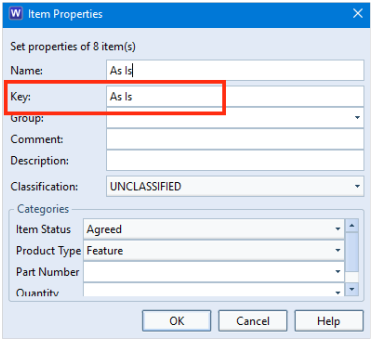
In the Item Properties dialog, you will see that the Key attribute is listed with the value As Is. This is due to the items having different values:

Item Properties dialog showing Key As Is
Item Properties dialog

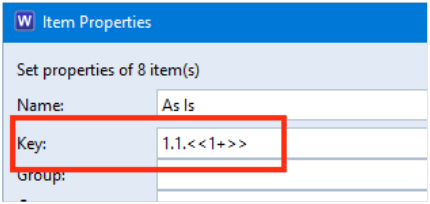
In this field you can add the value sequence within chevrons <<#=>>. In this case, you could enter the value 1.1.<<1+>>:

Item Properties dialog showing Key

The result of this operation is shown below in which the Keys are now numbered sequentially as required:

Correct hierarchy numbering

Any changes to the items will be stored in the items’ histories.

February Newsletter 2023

Welcome to the February 2023 newsletter from 3SL!

This newsletter contains a mixture of news and technical information about us, and our requirements management and systems engineering tool “Cradle”. We would especially like to welcome everyone who has purchased Cradle in the past month and those who are currently evaluating Cradle for their projects and processes.

We hope that 3SL and Cradle can deliver real and measurable benefits that help you to improve the information flow within, the quality and timeliness of, and the traceability, compliance and governance for, all of your current and future projects.

If you have any questions about your use of Cradle, please do not hesitate to contact 3SL Support here.

Happy Chinese New Year!

新年快乐!
3SL 祝愿我们的所有客户,合作伙伴和供应商2023吉祥如意!

The Chinese New Year holiday reached its climax with the Lantern Festival, celebrated on February 5th, 2023.

What are your Requirements for Valentines Day?

February is the month of Saint Valentine.

3SL Heart based on Photo by SHAHBAZ AKRAM from Pexels
Love Cradle

We want to share the love of engineering through Requirements Management and integrated MBSE. Rather than roses, we will use Cradle!

So if you need more Cradle licences for a bigger project or you want to upgrade your single user product to Cradle 7.7, then contact 3SL for further information.

Happy Shrove Tuesday (Pancake Day)

We hope you have a great pancake day (February 21st) whatever your process flow may be!

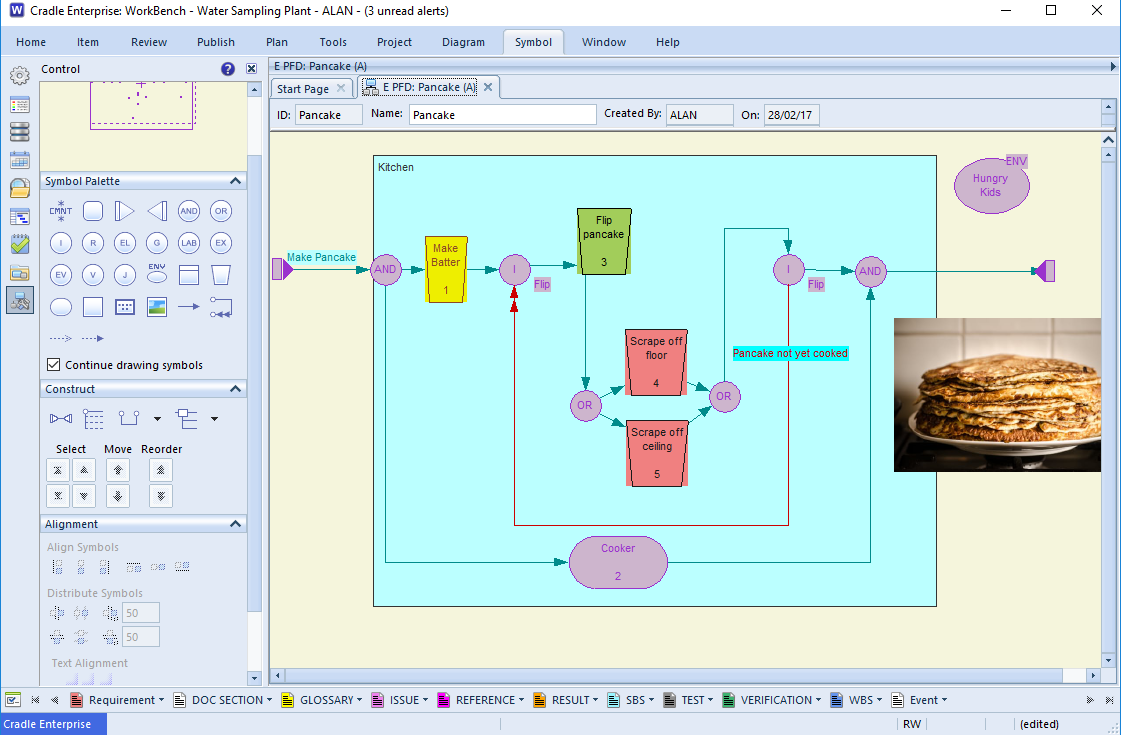
Shows a pancake in a process flow
Pancake Flow Diagram (PFD) !

A PFD (Process Flow Diagram), rather than Pancake Flow Diagram shows a particular task or process that the system can perform. This is termed a flow. Systems may have many flows, each of which may have concurrent or optional elements.

Modelling the flow before you take action can ensure you have thought about, and documented, the expected behaviour(s). It can be clear which parts of the system are operating in parallel and which could be bottlenecks awaiting the outcome of previous operations. However, modelling Shrove Tuesday’s pancakes may be a bit excessive ….
Looking Back!

Last month we discussed:

Still to Come this Month

    • Requirements Management online course – February 20th to 23rd

To book your place on the course please see here.

Specifying Custom Number Format in Free Text Categories

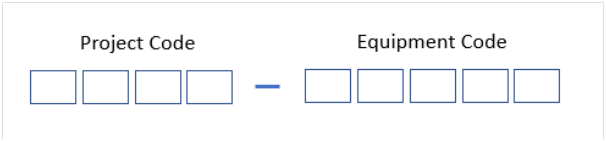
In a project, you may wish to enter a supporting reference number for an item of data. For example, an Equipment Number. This number might require a given format.

Where:

Project Code –  4 alpha characters
Equipment Code – 5 numerical characters

Supporting Reference Number
Supporting Reference Number for a Project

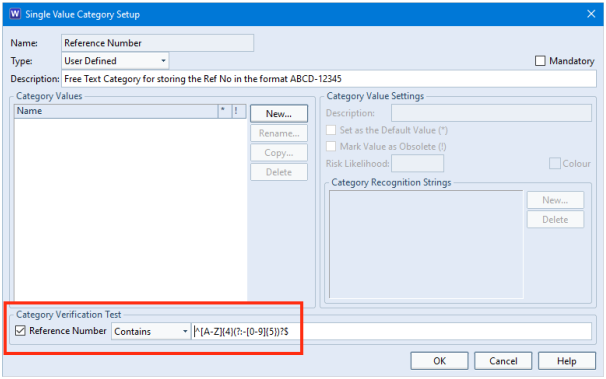
You can achieve this by creating a user-defined category with no category values defined and include a Category Verification Test using a Regular Expression.

Example Category Verification Test for Reference Number category
Example Category Verification Test

In this example, the regular expression ^[A-Z]{4}(?:-[0-9]{5})?$ can be broken down into:

Regular ExpressionDescription
^The beginning of the string
[A-Z]{4}The project code must be 4 alpha characters long in uppercase
?:-A hyphen separator
[0-9]{5}The equipment code must be 5 numeric characters
$The end of the string

Applying Category to the Item

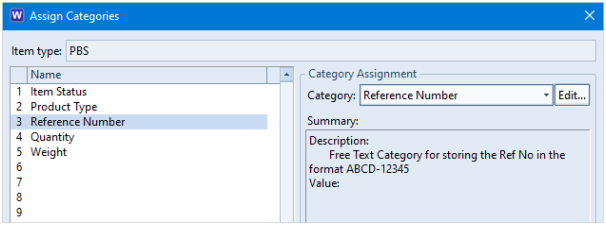
Once you have defined the category, you can assign this to an item type:

Assigning Categories
Assign Category to Item Type

Creating/Editing an Item

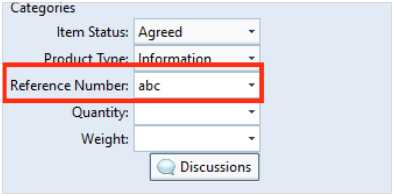
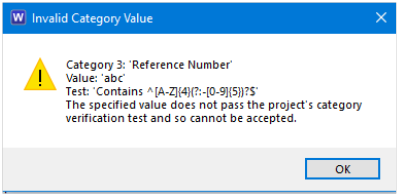
If you now create or modify an item of data, Cradle will present you with an error message on saving if the category value does not match what you have specified in the Category Verification Test.

Reference Number
Reference Number in Categories
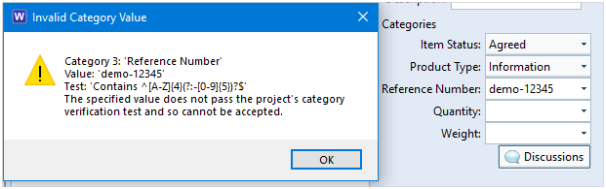
Invalid Category Value dialog

Here the validation test would fail because you have not included a hyphen separator.

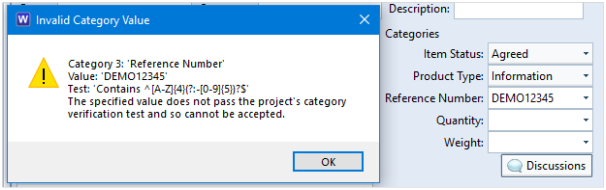
Validation Test result

You will also receive an error if the incorrect case is used. E.g. demo-12345.

Invalid Validation Test

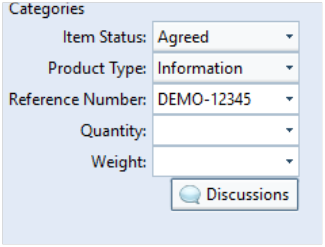
However, if you enter a value such as DEMO-12345, this would save without any warning or error message.

Example saved category

Summary

Regular expressions can be used in many areas of the tool. Using this functionality to enforce an input in free text categories can be a very useful feature.

For further information about regular expressions (regexes) please refer to the page https://www.threesl.com/cradle/help/7.7/#general/regularexpressions.htm.

Controlling the Cradle Access Mode
All Cradle users have a read-write access mode by default, and as such can create and modify information in their project databases, subject only to Cradle’s security and access control mechanisms such as privileges, classifications, skills, user types and so on.

There are no dedicated read-only user accounts in Cradle. However, there is a mechanism to specify which user accounts should be read-only and which should be read-write for a specified project.

This mechanism might be useful in protecting the consumption of your read-write connections.
Cradle User Control File (UCF)

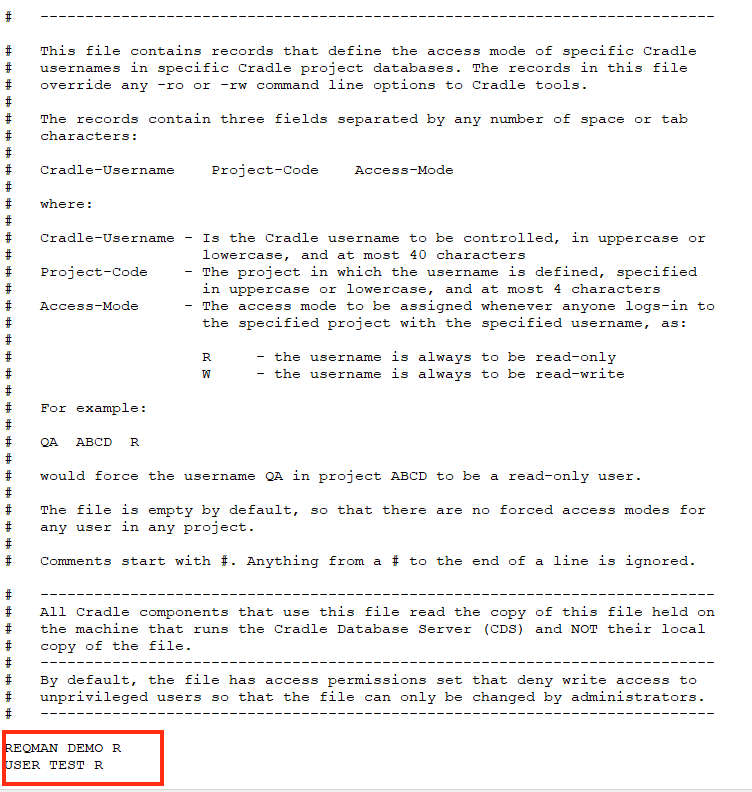
Cradle contains a cradle_users file that is stored in the admin directory of your Cradle installation. This file allows your System Administrator to control the access mode that a user has for specified projects.

The file allows you to specify the Cradle username, the project code and the access mode separated by a space or tab characters:

Cradle-Username      Project-Code     Access-Mode

where:

  • Cradle-Username – is the Cradle username to be controlled, in uppercase or lowercase, and at most 40 characters
  • Project-Code – the project in which the username is defined, specified in uppercase or lowercase, and at most 4 characters
  • Access-Mode – the access mode to be assigned whenever anyone logs in to the specified project with the specified username, as:
    • R – the username is always to be read-only
    • W – the username is always to be read-write
    Example cds_users file
    Example cds_users file

    The entries in this file override any -ro or -rw command line options to Cradle tools.

    This file is empty by default, so all users would have the ability to connect to databases read-write unless specified otherwise.

Using a Form for Each Workflow Stage

Example Scenario

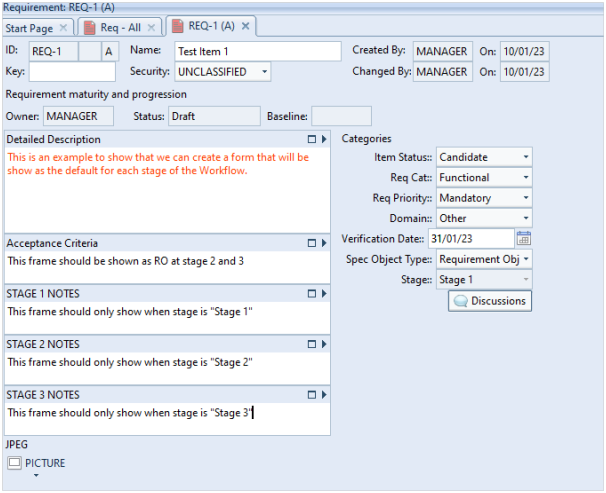
Cradle items can contain many frames, categories and other attributes that might not necessarily be relevant or required to be shown at different stages of your workflow. An example of which is shown below:

Item showing stage frames


The example provides frames that should only be shown at the relevant stage in the workflow and the Acceptance Criteria, we decided that we wish to show this information at all stages but displayed read-only at stages 2 and 3.

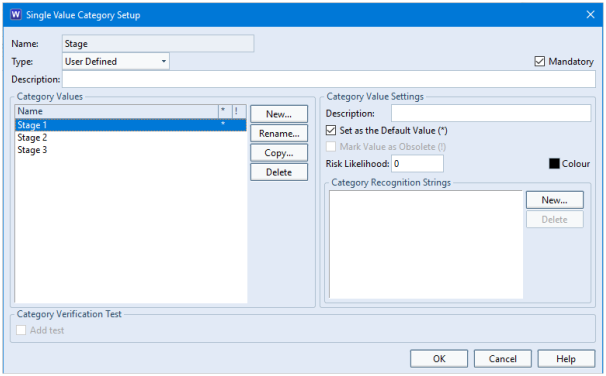
Defining a Stage Category

To start with, create a category to base the workflow on. This must be set as mandatory and have a default value set.

Setup category values

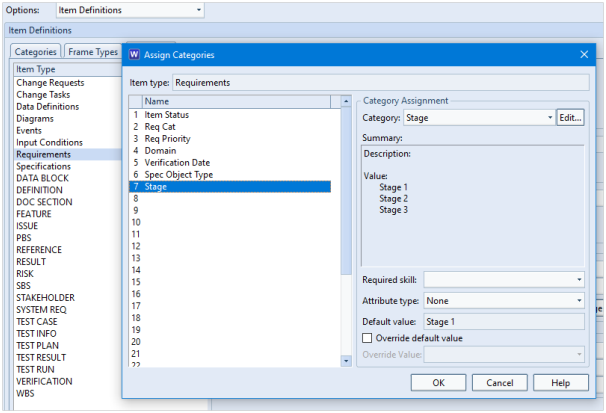
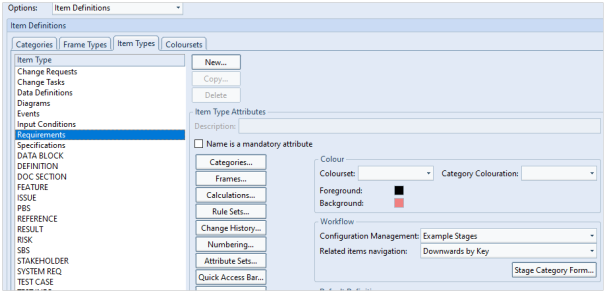
You can then assign this category to the item type. In this example we have used Requirements:

Assign Category
Assign category to item type

Defining the Workflow

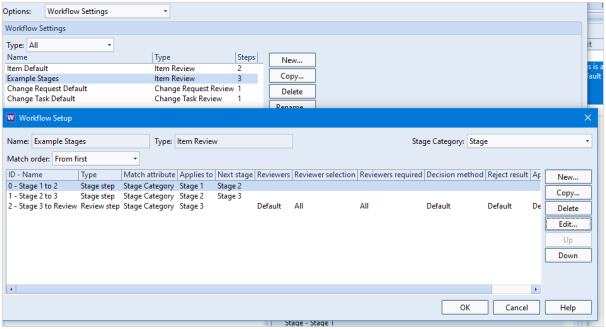
In the Workflow Settings, create a workflow that uses the Stage category to advance to the next stage of the process. In this example, we demonstrate a very simple workflow that advances from Stage 1 to Stage 2 and then Stage 2 to Stage 3. The 3rd level shown here is to then advance to formal review:

Show workflow stages

You can then set this as the default workflow for the item type:

Set default workflow

Note that the Stage Category Form… button becomes active. We will come back to this later as firstly you need to create a form for each stage.

Creating Forms

Using the Form Details dialog, create a form for each stage of the workflow.

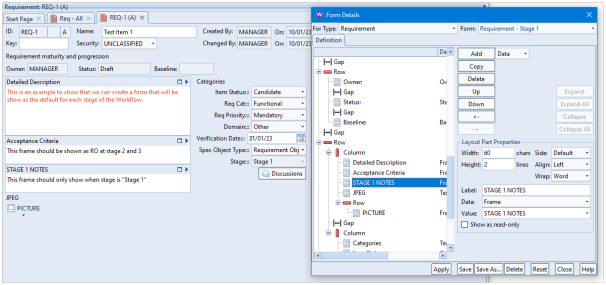
Stage 1 Form

The Stage 1 form in this example should show the frame STAGE 1 NOTES but not STAGE 2 NOTES or STAGE 3 NOTES.

Stage 1 form
Stage 1 form

Stage 2 Form

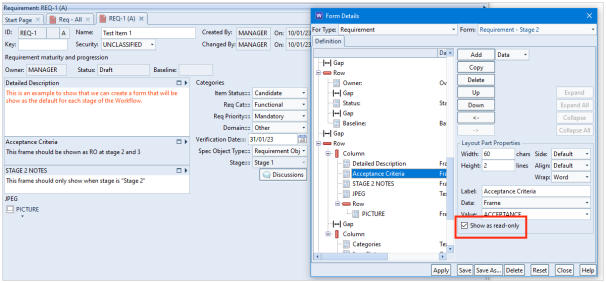
The Stage 2 form in this example should show the frame STAGE 2 NOTES but not STAGE 1 NOTES or STAGE 3 NOTES. You can also set the Acceptance Criteria frame to only be shown read-only as in the example below:

Stage 2 form
Stage 2 form

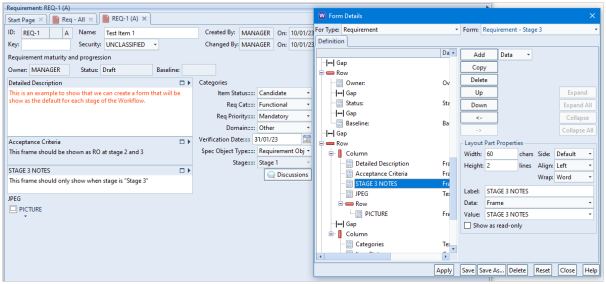
Stage 3 Form

The Stage 3 form in this example should show the frame STAGE 3 NOTES but not STAGE 1 NOTES or STAGE 2 NOTES. You can also set the Acceptance Criteria frame to only be shown read-only as in the example below.

Stage 3 form
Stage 3 form

Setting the Stage Forms

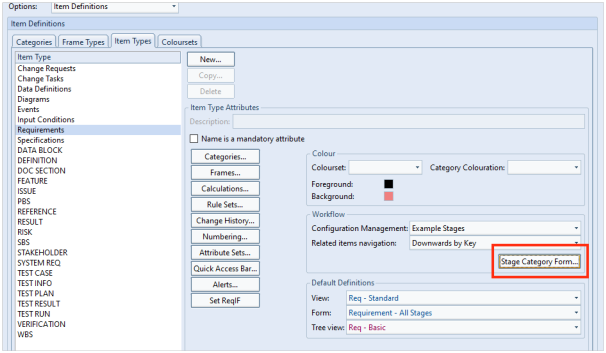
You can now return to Project Setup and press the Stage Category Form… button:

Project Setup Stage Category Form button
Stage Category Form button in Project Setup

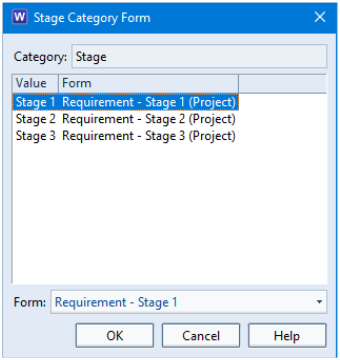
This will allow you to specify the form to be used at each stage of the workflow.

Stage Category Form dialog

Advancing the Item

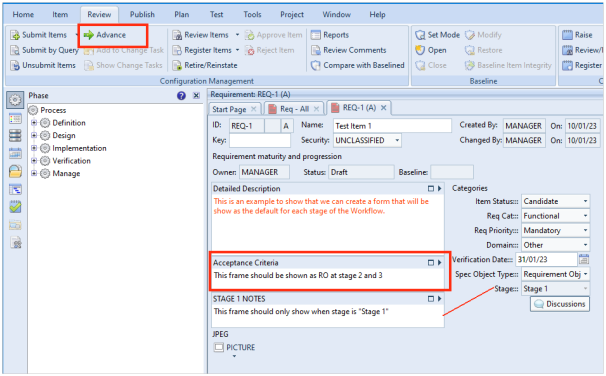
When you first create the item, the Stage category is set to Stage 1 as this is the default value for the item. You can see here that the STAGE 1 NOTES frame is shown and the Acceptance Criteria is read-write:

Advance option
Advance option in ribbon

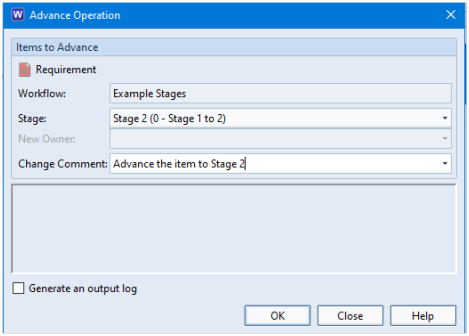
Pressing the Advance… button closes the item and changes the Stage value to Stage 2 once confirmed in the Advance Operation dialog:

Advance Operation dialog

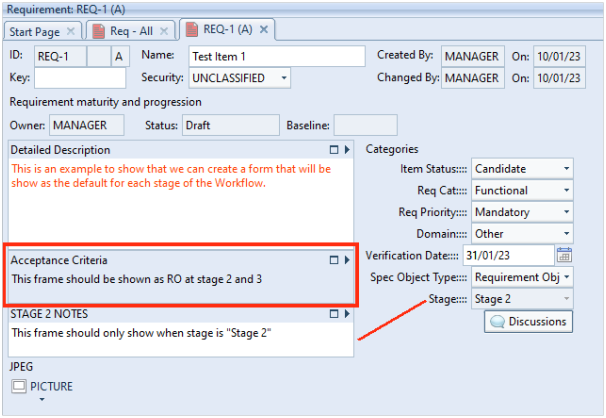
When you open the item again, you will see that the Stage category is set to Stage 2 and will use the Stage 2 form that shows the STAGE 2 NOTES frame and the Acceptance Criteria is read-only:

Item showing stage 2
Item in form showing stage 2

Advancing the item again uses the form that has been created for Stage 3 and so on.

Summary

WorkBench allows you to create a specific form for each stage of your workflow. This can be particularly useful if the frames, categories or attributes only need to be shown at certain stages of your process. It would simplify the user interface for the users that are modifying the items as they would not be presented with information that might be irrelevant to their task.

January Newsletter 2023

Welcome to the January 2023 newsletter from 3SL!

This newsletter contains a mixture of news and technical information about us, and our requirements management and systems engineering tool “Cradle”. We would especially like to welcome everyone who has purchased Cradle in the past month and those who are currently evaluating Cradle for their projects and processes.

We hope that 3SL and Cradle can deliver real and measurable benefits that help you to improve the information flow within, the quality and timeliness of, and the traceability, compliance and governance for, all of your current and future projects.

If you have any problems in your use of Cradle, please do not hesitate to contact 3SL Support here.

Happy New Year

We hope all those celebrating over Christmas had a safe and happy time.

Into a new year and a time to reflect on both your company’s achievements and problems. Whilst the turn of a date is nothing magical, the psychological effect of a new term can really help enthuse and help us focus.

If a project wasn’t quite on track, a root cause analysis can help identify where things went astray. Use this as a positive for new projects and look out for the ‘gotcha’ next time round. It is also important to identify the successes, the team and company can lever the feel-good factor on jobs well done.

3SL US Training Courses

Our US colleagues have scheduled the following public courses:

    • 3-Day User Course
      February 6-8 (3 days), $1395/attendee
    • Combined Administration Course
      February 9 (1 day), $465/attendee
    • 3-Day User Course
      April 17-19 (3 days), $1395/attendee
    • Combined Administration Course
      April 20 (1 day), $465/attendee

These courses are open to anyone from any organisation. If you register for one of these courses, it may mean that you will be joined by people from other organisations.

All of these public courses are limited to 8 attendees. For further information or to book your place on one of these courses please contact 3SL US.

Combined Administration Course

The Combined Administration Course course is designed for project team leaders or managers who administer and manage Cradle projects. It covers both user and project administration. It also includes setting up project schemas helping your users to hit the ground running.

3-Day User Course

The 3-Day User Course is designed to help new users become acquainted with Cradle. This course includes hands on demonstrations for both administration and requirements management tasks.

3SL Listed in ESMCP ESN Supplier Directory

The Home Office is leading a cross-government programme to deliver the new Emergency Services Network (ESN) critical communications system. ESN is being delivered through the Emergency Services Mobile Communication Programme (ESMCP) in the Home Office where 3SL and Cradle have provided requirements and test/evidence management and contract governance support since 2013.

Emergency Services Network

ESN is being delivered through the Emergency Services Mobile Communication Programme (ESMCP) in the Home Office. ESMCP has many component projects, including the acquisition of MCX end user communication services.

3SL is pleased to announce that we have been listed as a supplier in this programme. Interest in 3SL and Cradle can be registered through the portal or directly to 3SL.

Interest in Cradle from HMG or 3ES can be sent directly to 3SL or through G-Cloud 13 in the Digital Marketplace here.

Still to come this month

    • Project Administration online course – January 17th to 18th
    • User online course – January 24th to 25th

To book your place on either of the Project Administration or User courses please see here.

Simplifying your WorkBench Environment

WorkBench is an extremely flexible and customisable tool which can then result in user complexity as it provides such a wide range of displays and outputs for your project data:

  • MANY definition files to show queries and views of how you want to see your data
  • MANY types of reports and documents tailored for your required outputs
  • Different outputs/views of the project required at particular stages

With so many features available to users, it is important to understand how we can manage to reduce the complexity of the tool for them by using the Phase Hierarchy and/or Start Pages:

WorkBench Environment
Simplifying your WorkBench environment

We can reduce tool complexity by the use of the Phase Hierarchy and/or Start Pages.

Phase Hierarchy

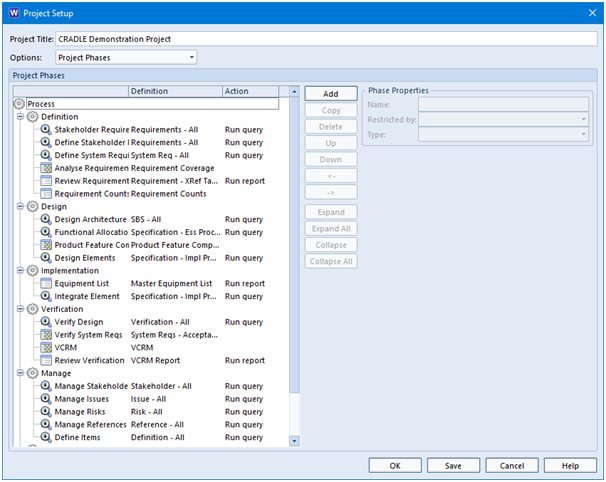
The phase hierarchy is an order of elements that can be grouped together under different folders to describe the process or project lifecycle of your project. You can think of these as phases, activities or tasks.

Creating a phase hierarchy is the task of a Project Administrator who needs PROJECT privilege and is created in Project Setup.

Each element of a phase can run an operation in an organised structure which is shown by expanding folders such as:

  • Running saved queries
  • Opening an item/set of items
  • Expanding a tree
  • Running a matrix
  • Running a metric
  • Producing a report
  • Producing a graph
  • Producing a draft document (Document Publisher)
  • Executing an external command
Phase Hierarchy
Defined Phase Hierarchy

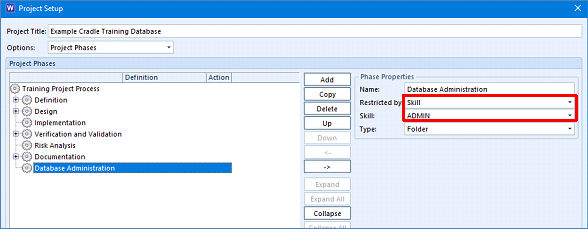
These phase operations are for all users of the project. However, you can restrict operations to a particular team or a particular skill:

Phase hierarchy showing skill

The phase hierarchy is also used in the Web Access tool.

Please note that the phase hierarchy feature is not available in single-user products.

Start Pages

Whereas a phase hierarchy defines the whole process and the activities to be performed, start pages could help to automate the steps to perform each activity for a particular user or set of users.

Start pages also allow you to open a specific WorkBench dialog or run a tool such as Document Loader that will simplify usage considerably as your users would have all relevant operations in an organised page without having to navigate through all of the menus, ribbons and dialogs.

These are organised in:

  • Labels
  • Headings
  • Actions / multiple actions

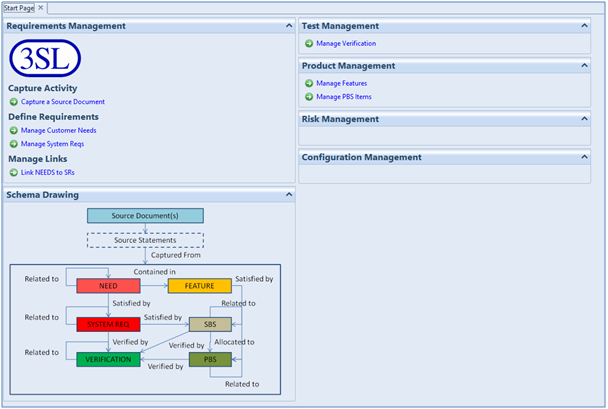
You can also add images to your start page which can be very useful in customising the interface for your project:

Start page
Example Start Page

Start pages can also allow you to run multiple operations with a single click.

You can define multiple start pages for a specific set of tasks and for multiple sets of users.

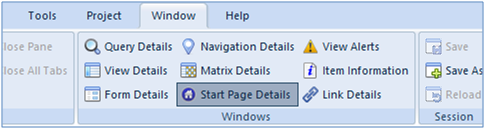
Start Page Details option

Summary

The phase hierarchy and start pages allow you to simplify the user experience of WorkBench.

The phase hierarchy defines a set of operations in folders which can be filtered for specific sets of users. This feature is not available in single-user products.

Start pages can be more personal and will quickly allow you to complete a task or create an output without having to navigate the WorkBench menu, ribbons and dialogs and saved definition files.