
Baseline Integrity Check

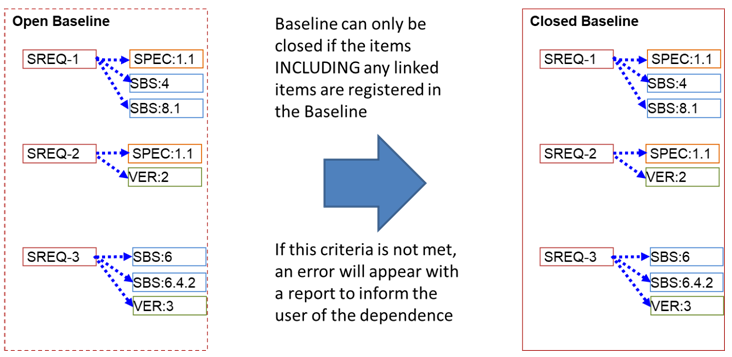
In certain situations, it may be necessary to stop a baseline from being closed if a condition has not been met. For example, if items have been registered in the baseline but items that are linked have not been.

Having this option set will ensure that all relevant data will appear in your completed baseline.
Baselines
Open and Closed Baselines

Setting the Baseline Item Integrity Check

To set this option, navigate to the Configuration Management options in Project Setup and tick the Baseline Item Integrity Check option:
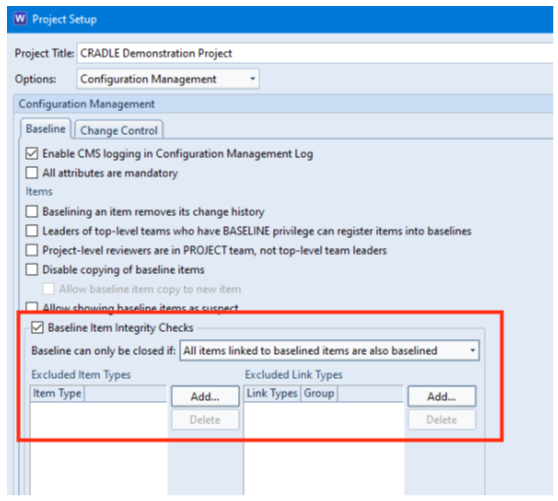
Baseline Option in Project Setup

You also have the ability to set a rule for the direction of the link/dependence:

  • All items linked to baselined items are also baselined (default option)
  • Baselined items’ source items are also baselined
  • Baselined items’ destination items are also baselined

Exclusions

You can also exclude item types or link types from being bound by this setting:
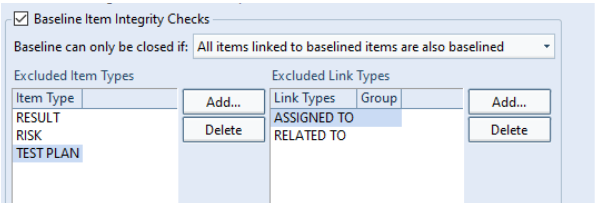
Baseline Integrity Exclusions
Excluded item and link types

Failing the Check

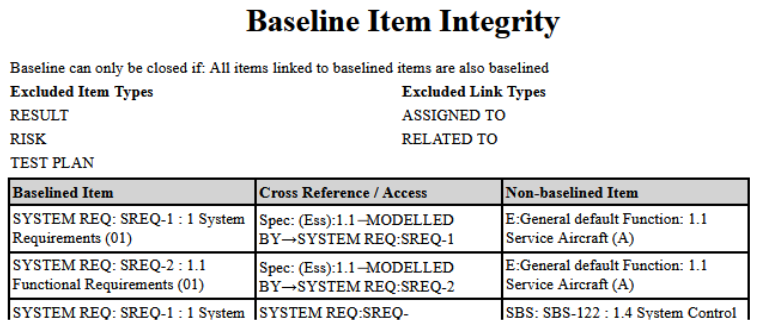
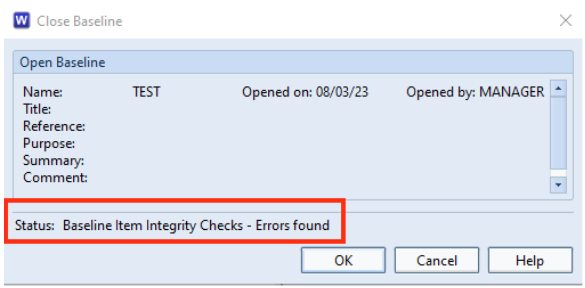
If any of the checks fail, an error message will be shown with a report showing the items that caused the close baseline operation to fail:
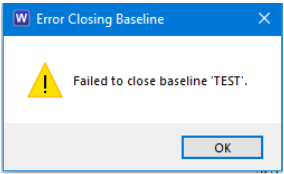
Error Closing Baseline dialog
Close Baseline dialog showing errors
Example Baseline Integrity Report

Adding Data to Multiple Selected Item Frames using CSV Export / Import

Introduction

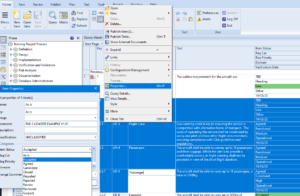
WorkBench has the ability to select multiple items and modify some attributes and categories using the Properties dialog.

Properties
Properties for Multiple Selected Items

However, what if you wanted to add data into selected item’s FRAMES?

In this example, we will show how this can be achieved using CSV export / import.

Adding data to multiple selected item FRAMES

Create a CSV File

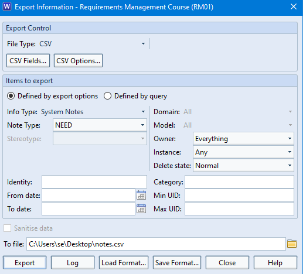
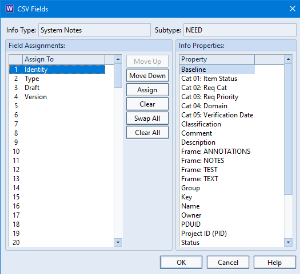
  • Export your item type to CSV. You only need to map the default attributes Identity, Type, Draft and Version that are already pre-set. The other attributes/frames/categories do not need to be exported.
    Export Control
    Export Items Dialog

    CSV Export Mapping
    Setting Required Attributes
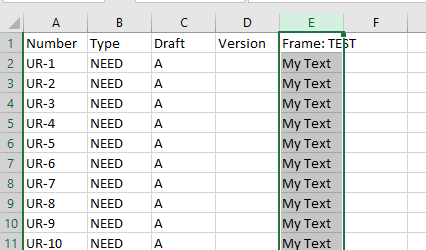
  • Open the CSV file in Excel and add a column representing the new frame.
    In this example, we are adding a new frame named TEST and adding the text “My Text” in this frame for all (or selected) items.
    You could, of course, add different text content for each of these cells.

    Example CSV
    Add Frame Column to Excel

    Add a Frame in your WorkBench Project

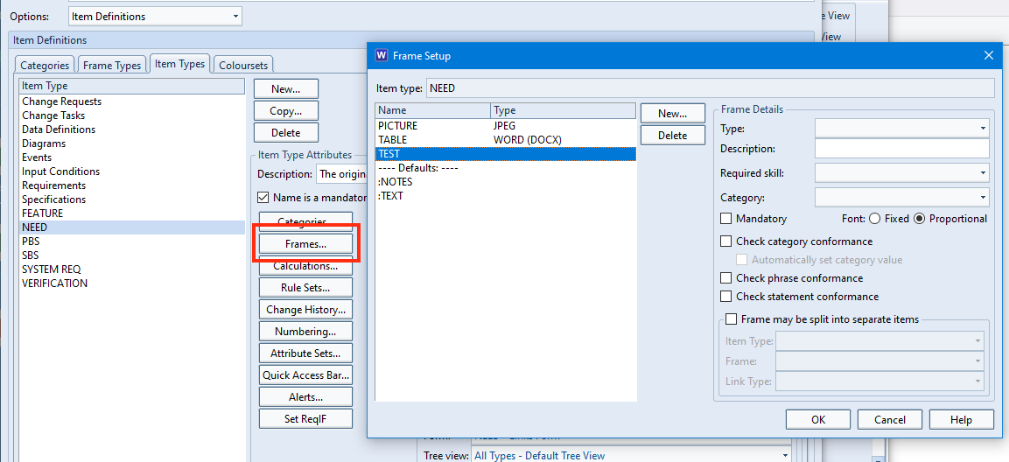
  • If you don’t already have the frame, you can add a new frame to the item type in Project Setup now. This is the frame where we will add content en bloc.
Frame Setup
Frame Setup

Importing The CSV File

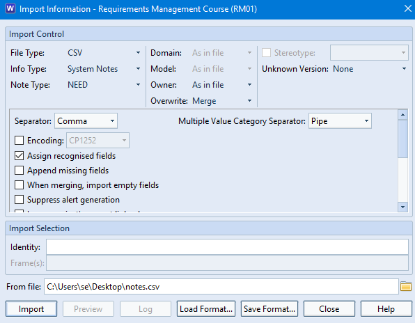
  • Select Import with the file type CSV and the required item type ensuring that the Overwrite option is set to Merge and press Import.
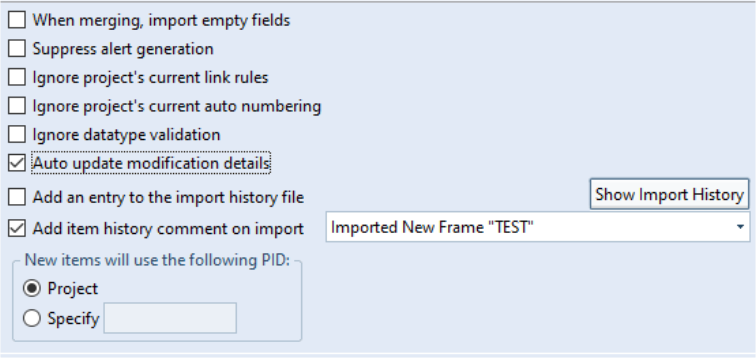
    Note also that there are options here to update the modification date / last modifier and also whether to add an entry to the items’ edit history.
Import Options
Import Options
Import Dialog
Import Dialog
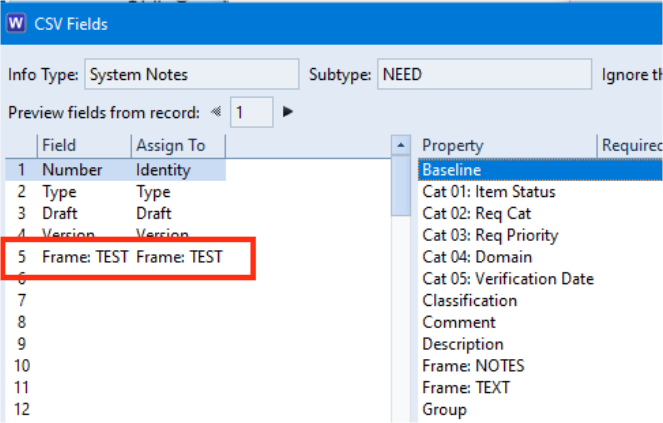
  • Map the fields ensuring that the added frame is mapped
CSV Fields
CSV Fields
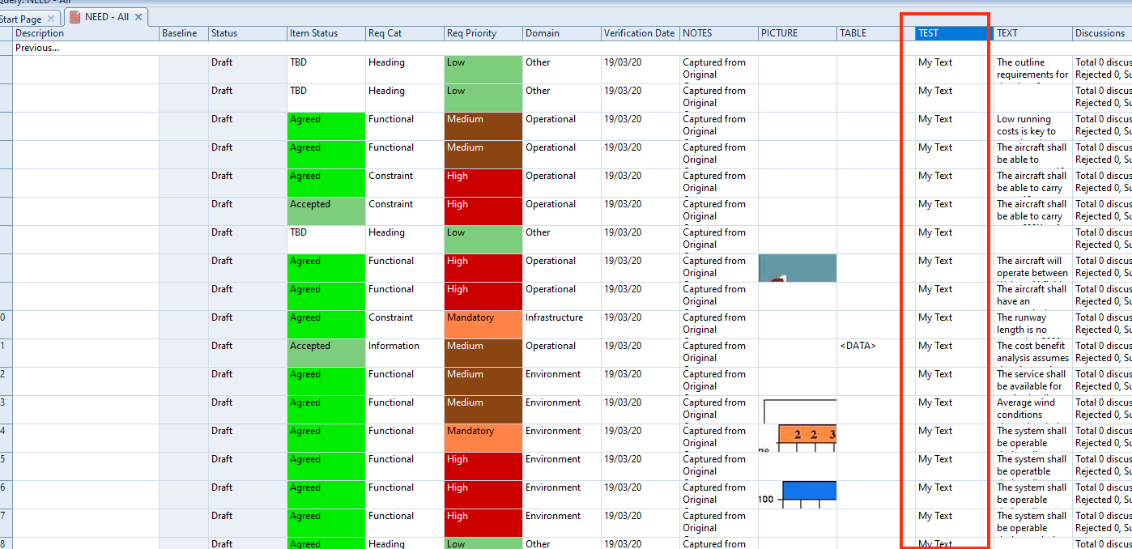
  • You will see that the new frame has been added with content for all items and the previous content remains intact
Updated Frame in WorkBench

3SL Support and Call Logging

Sources of Information

3SL provides several sources of information should you or your colleagues require some assistance in your usage of Cradle.

However, should you require additional assistance, reporting a bug or suggesting an enhancement, additions to our documentation etc, you can contact 3SL directly via Support Services:
3SL Support Services

Contacting 3SL

When seeking support, we suggest assigning a Cradle liaison/Project Administrator as the users’ first point of call as they should already have undergone some form of Cradle training. If this person cannot provide an answer, then our support team will be available to assist.

3SL Support Services

Technical Support Department is available 9am – 5pm GMT Monday to Friday but often also available outside of these hours via email support@threesl.com . Our landline is +44 (0)1229 838867.

Support Call Logging

When communicating with 3SL via email, we will initially assign you a call number and a support engineer to address any problems that you might have. Please provide as much information about this call as possible so we can quickly resolve the call without any misunderstanding. The details that we like to receive are:

  • Name and full contact details
  • Area of Cradle with the problem
  • Your perceived priority for the problem
  • Operating system information
  • Cradle version
  • Means of reproducing the problem

Screenshots, error logs and data (sanitised or raw) are especially welcome to allow us to quickly and easily reproduce any problems.

Any bug reports or enhancements will be tracked in our database and you will be informed when an update is available.

Web Meetings

Should there be any confusion or further information required about a call, you or 3SL may suggest a demonstration via a Web Meeting.

3SL generally uses GoTo Meeting as our meeting platform but we can also use your corporate default platform such as Microsoft Teams.

Cradle Training

3SL offers training courses in the administration and practical usage of Cradle as:

  • Online “public” training interspersed throughout the year
  • On-site or online “private” training

These training courses cover subject areas such as:

  • System Administration
  • Project Administration
  • General User
  • Requirements Management
  • Document Publisher
  • Configuration Management
  • Risk Management
  • Test Management and Execution
  • Systems Modelling


3SL Cradle Cloud Services

Our Cradle “cloud” services (SaaS – Software as a Service) provide access to 3SL’s Requirements Management and Systems Engineering tool – Cradle using remote servers. This means there is no need to install the software on your company systems.

Cradle SaaS
Cradle Cloud Service

They are also a cost effective way to get up and running with Cradle.

3SL offers a choice of Cradle-Enterprise systems delivered as Cradle cloud services from a choice of servers, in a range of fixed term subscriptions, each accessed by your choice of concurrent users.

The Cradle service provides Cradle directly to the users from a remote environment managed by 3SL:

  • In a matter of days from order
  • With no software installations
  • Needing no, or little, work from your IT

What is the Cradle Service?

The Cradle service:

  • Is a self-contained set of Cradle and third party software tools
  • Is integrated with your filesystems and printers
  • Is secure and resilient
  • Needs no administration by your organisation
  • If you wish, is linked to your corporate email
  • If you wish, is run on servers exclusive to you

The Cradle service delivers the latest version of Cradle, and related applications directly to user’s desktops. Cradle and the other tools appear in windows like any other application that a user runs locally. But Cradle, and your databases, all run on remote servers inside the Cradle service.

You can have any number of databases. They, and the data inside them, are private to you. 3SL will manage the service so you can be assured that it is always available.

You can choose a lower cost shared service or a dedicated service. In the shared service, you share servers at 3SL in the UK with other subscribers, keeping privacy of your data and databases. In a dedicated service, 3SL creates a virtual private cloud (VPC) of servers using a third party hosting provider that are exclusive to you and located in any geographic area that you choose.

All databases are backed up automatically with a 3 hour RTO (Recovery Time Objective) and an 8 hour RPO ( Recovery Point Objective). Backups are held for 8 months.

Cradle Subscriptions

The Cradle system types available as a subscription are:

  • Cradle Enterprise-RM Basic – requirements management including the ability to generate metrics and dashboards
  • Cradle Enterprise-RM Pro – requirements management including the ability to generate metrics, dashboards and produce quality documentation
  • Cradle Enterprise-SE Basic – systems engineering including systems modelling and the ability to generate metrics and dashboards
  • Cradle Enterprise-SE Pro – systems engineering including system modelling and the ability to generate metrics, dashboards and produce quality documentation

The Cradle subscriptions can be packaged into simple fixed term durations ranging from one month to sixty months. This allows you to budget and ensure cover for a whole host of proejcts. You will be free to finish or renew as your project needs at the end of the term.

Cradle SaaS in a Nutshell

  • Choose from a range of Cradle Enterprise systems to provide the capabilities you need
  • Choose a shared or dedicated host environment
  • Specify the number of users that you need to have access to the environment
  • Specify how long you want the service for
  • Work in any number of databases
  • Upload and download data and results easily from your local IT systems
  • Print directly to your local devices if needed
  • On-boarding service to help you get started
  • Off-boarding service to preserve your work before your subscription ends
  • Add extra terms and change who can access the service at any time

For pricing of the Cradle subscriptions please visit our website.


Customising the Quick Access Bar

WorkBench provides a Quick Access Bar that allows you to launch queries by item type from the bottom of the WorkBench main screen. It’s intended to provide quick and easy access to all of the relevant types of information in your Cradle database.

Default Queries

By default, WorkBench is initialised to show a standard (Automatic) set of queries each ordered by the Identity attribute

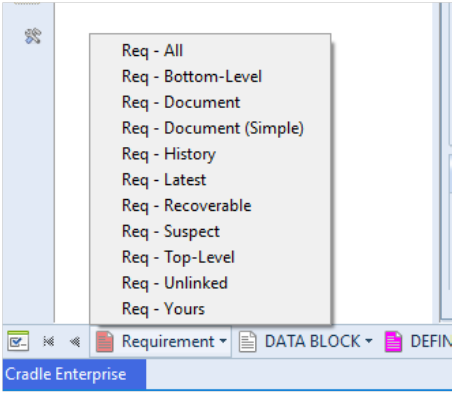
  • All – Lists all items that you can access.
  • Bottom-Level – Lists all bottom-level items that you can access. Bottom-level items are items that do not have any cross references from them to other items of the same type. For example,  they have no children.
  • Document – Lists the latest instance of items that you can access and displays them as a document. For example in Document style.
  • Document (Simple) – A simplified version of the Document query.
  • History – Lists the latest instance of items that you can access and displays them in a view showing change histories.
  • Latest – Lists the latest instance of all items that you can access. There can be many instances of each item, such as many versions of the item.
  • Recoverable – Lists all items that are in a recoverable state.
  • Suspect – Lists all items that are deemed suspect.
  • Top-Level – Lists all top-level items that you can access. Top-level items are items that do not have any cross references to them to other items of the same type. For example, they have no parents.
  • Unlinked – Lists all items that you can access that don’t have cross references to or from them from any other items.
  • Yours – Lists all items that you own.
Query options from Quick Access Bar
Quick Access Bar query options

These queries may be useful as a starter set of queries. However, it is likely that you will want to tailor the queries shown in the Quick Access Bar to meet your own project needs and use the Project queries and views to display the data.

Note that all automatic queries are ordered by Identity. You might wish to order your Quick Access Bar queries by Key, especially when working with hierarchies of items.

Adding Project Queries to the Quick Access Bar

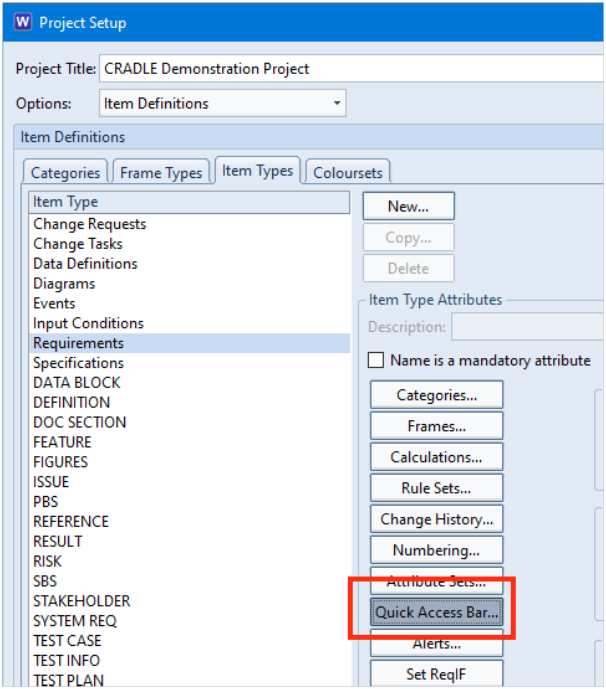
In Project Setup, you can select the item type that you wish to tailor and press the Quick Access Bar button. In this example, we will use Requirements:

Quick Access Bar option in Project Setup
Project Setup – Quick Access Bar option

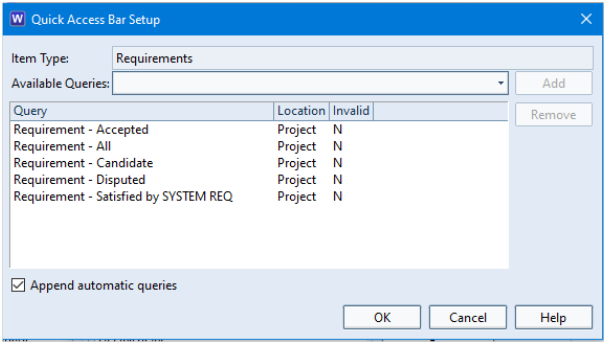
This presents you with a dialog that allows you to add up to 10 Project or System defined queries to your Quick Access Bar.

You can still show the Automatic queries by selecting the Append automatic queries checkbox:

Quick Access Bar Setup dialog

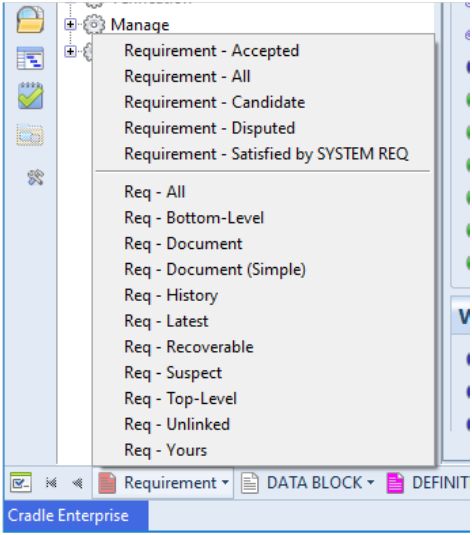
Once applied, all users in the project will see the changes to the Quick Access Bar:

Quick Access Bar showing additional queries
Additional Queries in Quick Access Bar

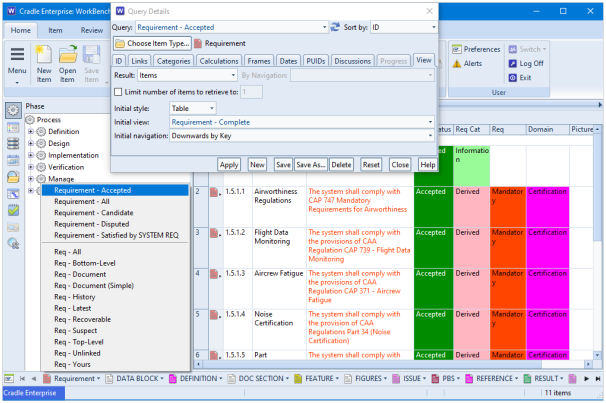
These additional queries will use the view as defined in the Query Details dialog.

Quick Access Bar - Query Details
Quick Access Bar – Query Details

Personalising the Quick Access Bar

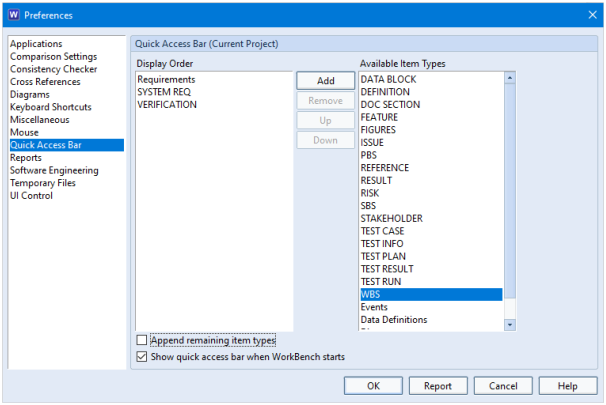
You may wish to personalise the Quick Access Bar for your own use to only show the item types that are relevant to you in the order that you wish them to be displayed. You can achieve this in the Preferences:

Preferences - QAB Option
Quick Access Bar options in Preferences

If you select the Append remaining item types checkbox, all other item types are still shown on the Quick Access Bar after the ones you have selected:

Quick Access Bar with highlighted
Quick Access Bar with highlighted item types

For further information on the Quick Access Bar functionality, refer to the help page https://www.threesl.com/cradle/help/7.7/#workbench/other/wrk_qab.htm.

Renumbering a Sequence of Incorrect Key Values

Scenario

You have captured a number of items into Cradle. However, the KEY attribute that defines the hierarchy has incorrect values. Do you have to open each item individually to correct this numbering?

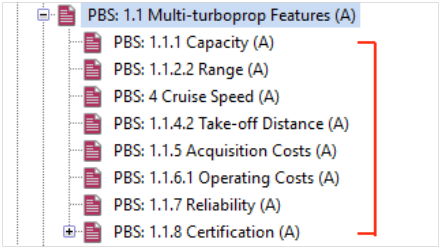
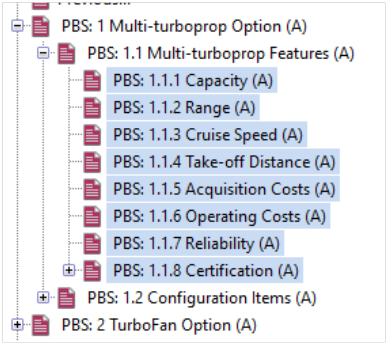
For example, the items below should have a sequence of 1.1.1 to 1.1.8:

Numbering of items in a hierarchy
Incorrect hierarchical numbering

Solution

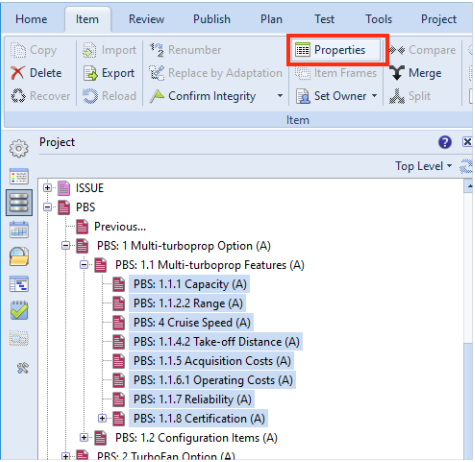
No, you can actually define the key sequence by selecting all of the items to be changed and pressing Properties:

Properties option
Properties option

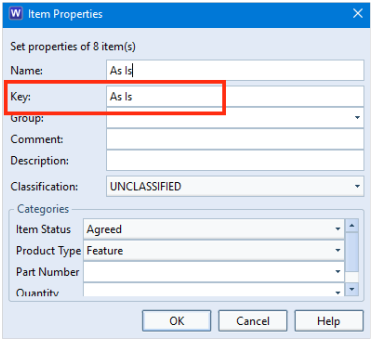
In the Item Properties dialog, you will see that the Key attribute is listed with the value As Is. This is due to the items having different values:

Item Properties dialog showing Key As Is
Item Properties dialog

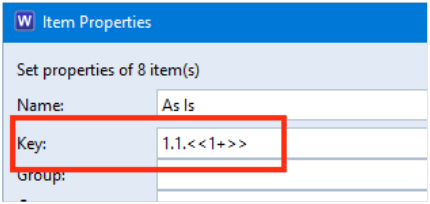
In this field you can add the value sequence within chevrons <<#=>>. In this case, you could enter the value 1.1.<<1+>>:

Item Properties dialog showing Key

The result of this operation is shown below in which the Keys are now numbered sequentially as required:

Correct hierarchy numbering

Any changes to the items will be stored in the items’ histories.

February Newsletter 2023

Welcome to the February 2023 newsletter from 3SL!

This newsletter contains a mixture of news and technical information about us, and our requirements management and systems engineering tool “Cradle”. We would especially like to welcome everyone who has purchased Cradle in the past month and those who are currently evaluating Cradle for their projects and processes.

We hope that 3SL and Cradle can deliver real and measurable benefits that help you to improve the information flow within, the quality and timeliness of, and the traceability, compliance and governance for, all of your current and future projects.

If you have any questions about your use of Cradle, please do not hesitate to contact 3SL Support here.

Happy Chinese New Year!

新年快乐!
3SL 祝愿我们的所有客户,合作伙伴和供应商2023吉祥如意!

The Chinese New Year holiday reached its climax with the Lantern Festival, celebrated on February 5th, 2023.

What are your Requirements for Valentines Day?

February is the month of Saint Valentine.

3SL Heart based on Photo by SHAHBAZ AKRAM from Pexels
Love Cradle

We want to share the love of engineering through Requirements Management and integrated MBSE. Rather than roses, we will use Cradle!

So if you need more Cradle licences for a bigger project or you want to upgrade your single user product to Cradle 7.7, then contact 3SL for further information.

Happy Shrove Tuesday (Pancake Day)

We hope you have a great pancake day (February 21st) whatever your process flow may be!

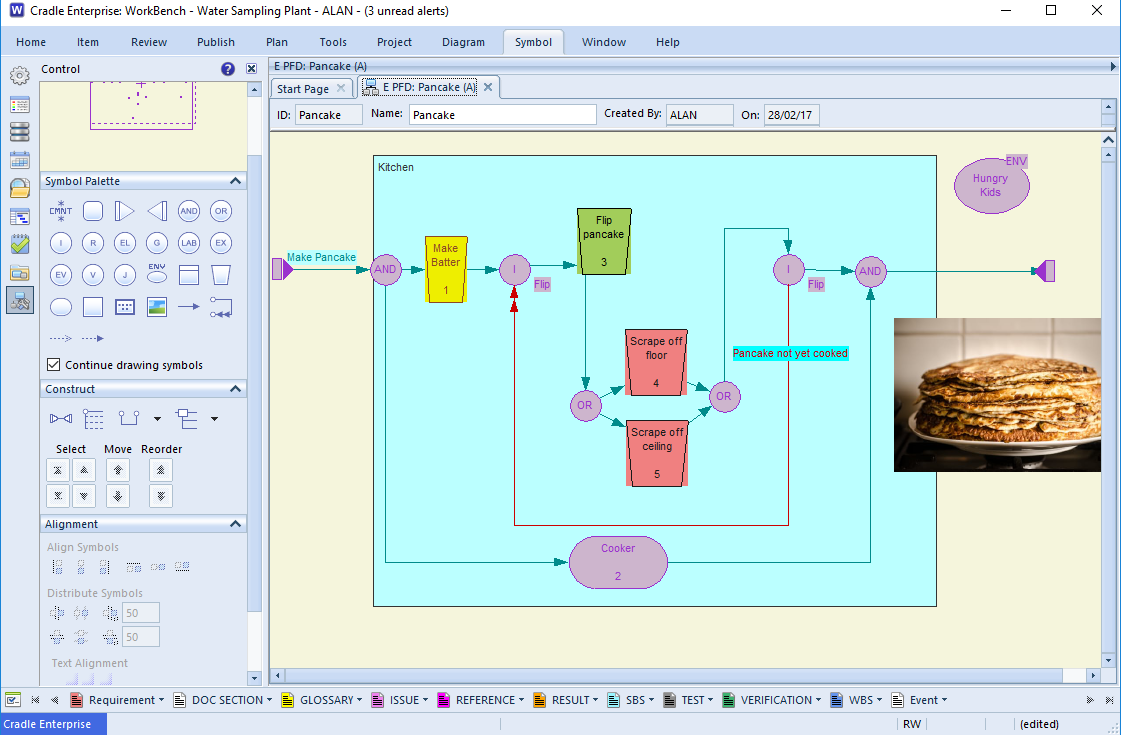
Shows a pancake in a process flow
Pancake Flow Diagram (PFD) !

A PFD (Process Flow Diagram), rather than Pancake Flow Diagram shows a particular task or process that the system can perform. This is termed a flow. Systems may have many flows, each of which may have concurrent or optional elements.

Modelling the flow before you take action can ensure you have thought about, and documented, the expected behaviour(s). It can be clear which parts of the system are operating in parallel and which could be bottlenecks awaiting the outcome of previous operations. However, modelling Shrove Tuesday’s pancakes may be a bit excessive ….

Looking Back!

Last month we discussed:

Still to Come this Month

    • Requirements Management online course – February 20th to 23rd

To book your place on the course please see here.

Specifying Custom Number Format in Free Text Categories

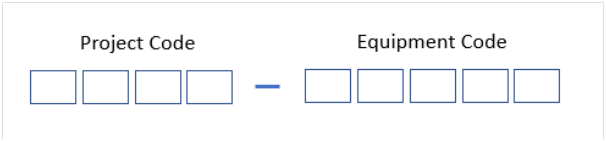
In a project, you may wish to enter a supporting reference number for an item of data. For example, an Equipment Number. This number might require a given format.

Where:

Project Code –  4 alpha characters
Equipment Code – 5 numerical characters

Supporting Reference Number
Supporting Reference Number for a Project

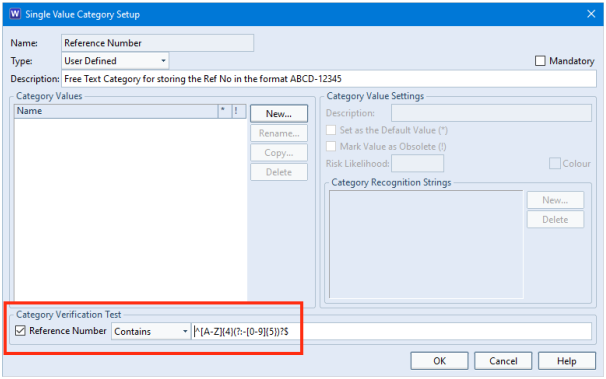
You can achieve this by creating a user-defined category with no category values defined and include a Category Verification Test using a Regular Expression.

Example Category Verification Test for Reference Number category
Example Category Verification Test

In this example, the regular expression ^[A-Z]{4}(?:-[0-9]{5})?$ can be broken down into:

Regular ExpressionDescription
^The beginning of the string
[A-Z]{4}The project code must be 4 alpha characters long in uppercase
?:-A hyphen separator
[0-9]{5}The equipment code must be 5 numeric characters
$The end of the string

Applying Category to the Item

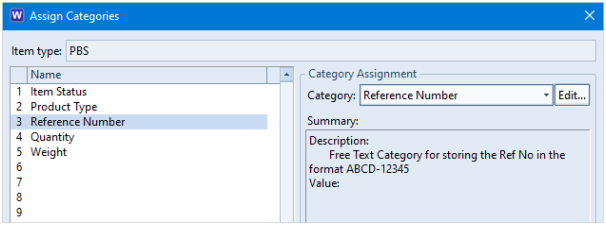
Once you have defined the category, you can assign this to an item type:

Assigning Categories
Assign Category to Item Type

Creating/Editing an Item

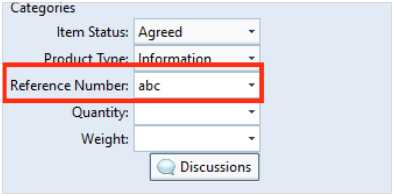
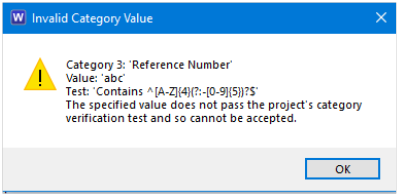
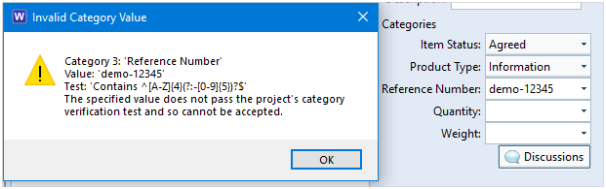
If you now create or modify an item of data, Cradle will present you with an error message on saving if the category value does not match what you have specified in the Category Verification Test.

Reference Number
Reference Number in Categories
Invalid Category Value dialog

Here the validation test would fail because you have not included a hyphen separator.

Validation Test result

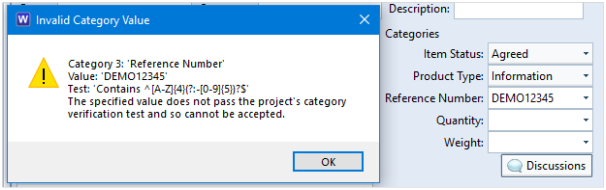
You will also receive an error if the incorrect case is used. E.g. demo-12345.

Invalid Validation Test

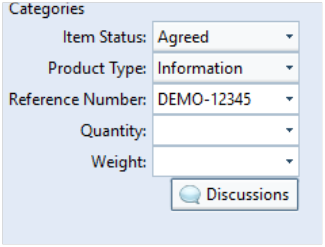
However, if you enter a value such as DEMO-12345, this would save without any warning or error message.

Example saved category

Summary

Regular expressions can be used in many areas of the tool. Using this functionality to enforce an input in free text categories can be a very useful feature.

For further information about regular expressions (regexes) please refer to the page https://www.threesl.com/cradle/help/7.7/#general/regularexpressions.htm.

Controlling the Cradle Access Mode

All Cradle users have a read-write access mode by default, and as such can create and modify information in their project databases, subject only to Cradle’s security and access control mechanisms such as privileges, classifications, skills, user types and so on.

There are no dedicated read-only user accounts in Cradle. However, there is a mechanism to specify which user accounts should be read-only and which should be read-write for a specified project.

This mechanism might be useful in protecting the consumption of your read-write connections.

Cradle User Control File (UCF)

Cradle contains a cradle_users file that is stored in the admin directory of your Cradle installation. This file allows your System Administrator to control the access mode that a user has for specified projects.

The file allows you to specify the Cradle username, the project code and the access mode separated by a space or tab characters:

Cradle-Username      Project-Code     Access-Mode

where:

  • Cradle-Username – is the Cradle username to be controlled, in uppercase or lowercase, and at most 40 characters
  • Project-Code – the project in which the username is defined, specified in uppercase or lowercase, and at most 4 characters
  • Access-Mode – the access mode to be assigned whenever anyone logs in to the specified project with the specified username, as:
    • R – the username is always to be read-only
    • W – the username is always to be read-write
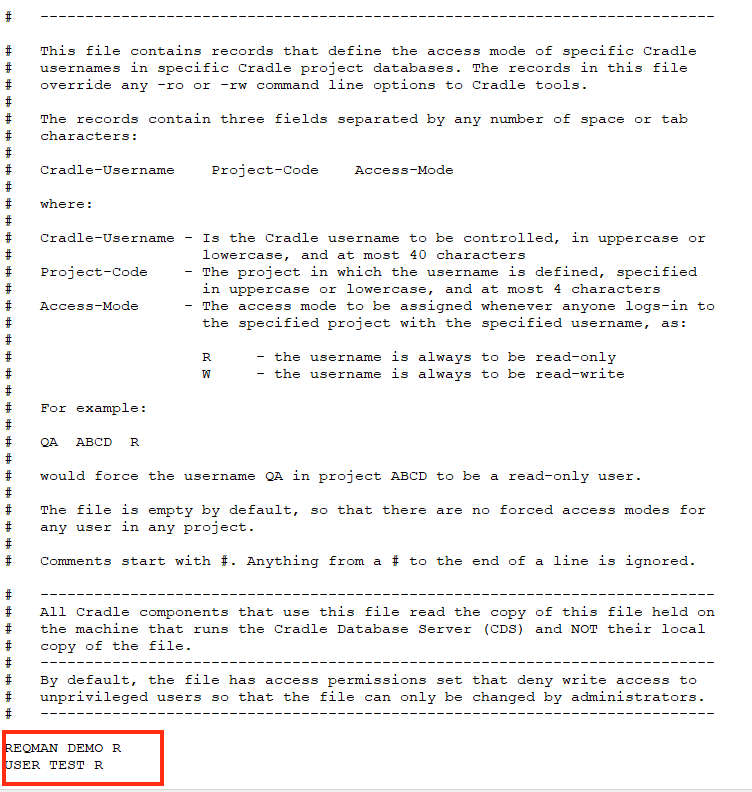
    Example cds_users file
    Example cds_users file

    The entries in this file override any -ro or -rw command line options to Cradle tools.

    This file is empty by default, so all users would have the ability to connect to databases read-write unless specified otherwise.

Using a Form for Each Workflow Stage

Example Scenario

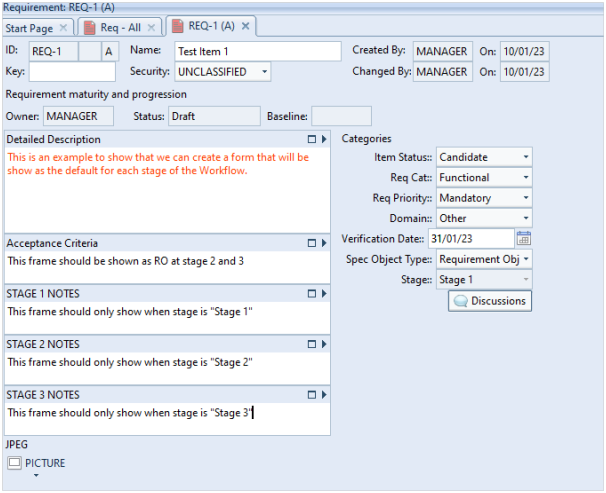
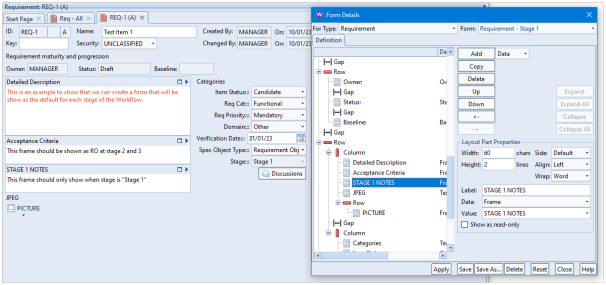
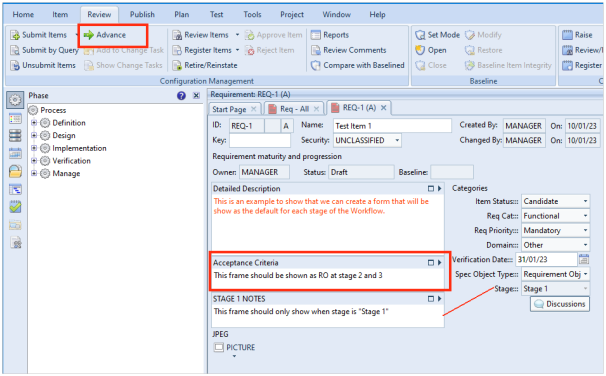
Cradle items can contain many frames, categories and other attributes that might not necessarily be relevant or required to be shown at different stages of your workflow. An example of which is shown below:

Item showing stage frames

The example provides frames that should only be shown at the relevant stage in the workflow and the Acceptance Criteria, we decided that we wish to show this information at all stages but displayed read-only at stages 2 and 3.

Defining a Stage Category

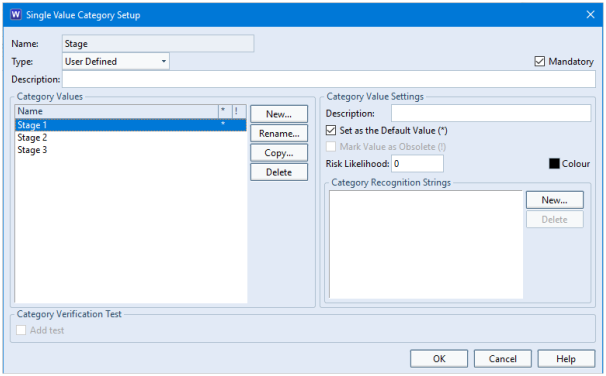
To start with, create a category to base the workflow on. This must be set as mandatory and have a default value set.

Setup category values

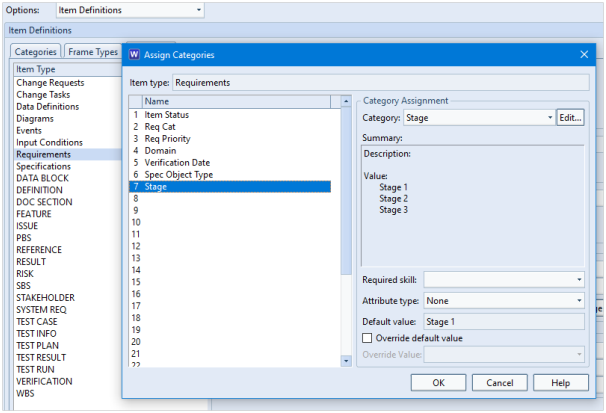
You can then assign this category to the item type. In this example we have used Requirements:

Assign Category
Assign category to item type

Defining the Workflow

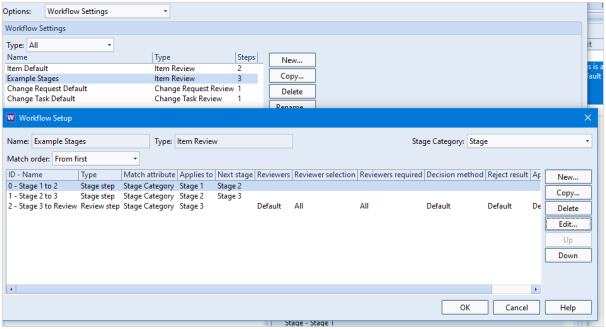
In the Workflow Settings, create a workflow that uses the Stage category to advance to the next stage of the process. In this example, we demonstrate a very simple workflow that advances from Stage 1 to Stage 2 and then Stage 2 to Stage 3. The 3rd level shown here is to then advance to formal review:

Show workflow stages

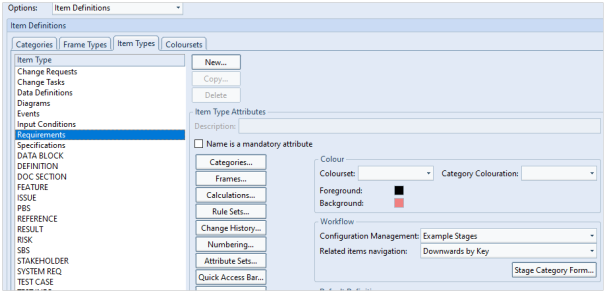
You can then set this as the default workflow for the item type:

Set default workflow

Note that the Stage Category Form… button becomes active. We will come back to this later as firstly you need to create a form for each stage.

Creating Forms

Using the Form Details dialog, create a form for each stage of the workflow.

Stage 1 Form

The Stage 1 form in this example should show the frame STAGE 1 NOTES but not STAGE 2 NOTES or STAGE 3 NOTES.

Stage 1 form
Stage 1 form

Stage 2 Form

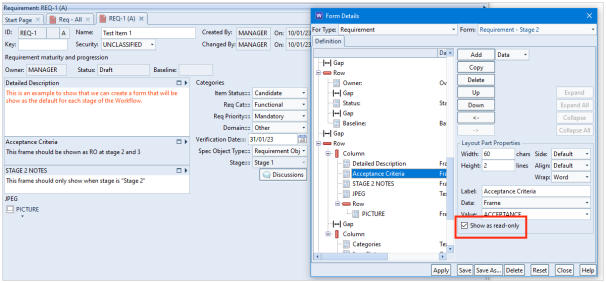
The Stage 2 form in this example should show the frame STAGE 2 NOTES but not STAGE 1 NOTES or STAGE 3 NOTES. You can also set the Acceptance Criteria frame to only be shown read-only as in the example below:

Stage 2 form
Stage 2 form

Stage 3 Form

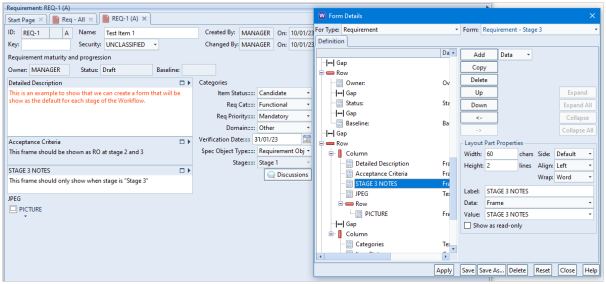
The Stage 3 form in this example should show the frame STAGE 3 NOTES but not STAGE 1 NOTES or STAGE 2 NOTES. You can also set the Acceptance Criteria frame to only be shown read-only as in the example below.

Stage 3 form
Stage 3 form

Setting the Stage Forms

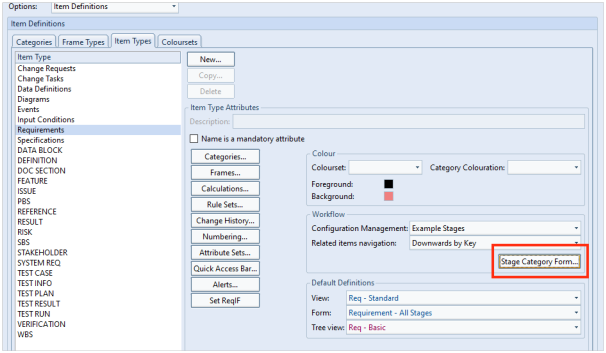
You can now return to Project Setup and press the Stage Category Form… button:

Project Setup Stage Category Form button
Stage Category Form button in Project Setup

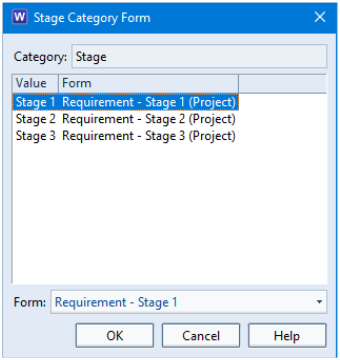
This will allow you to specify the form to be used at each stage of the workflow.

Stage Category Form dialog

Advancing the Item

When you first create the item, the Stage category is set to Stage 1 as this is the default value for the item. You can see here that the STAGE 1 NOTES frame is shown and the Acceptance Criteria is read-write:

Advance option
Advance option in ribbon

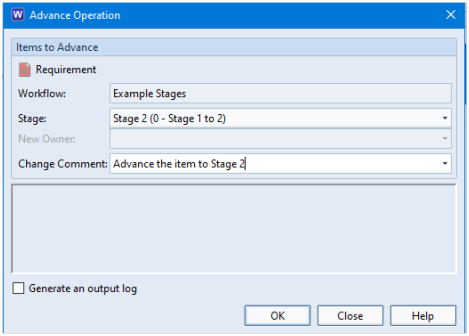
Pressing the Advance… button closes the item and changes the Stage value to Stage 2 once confirmed in the Advance Operation dialog:

Advance Operation dialog

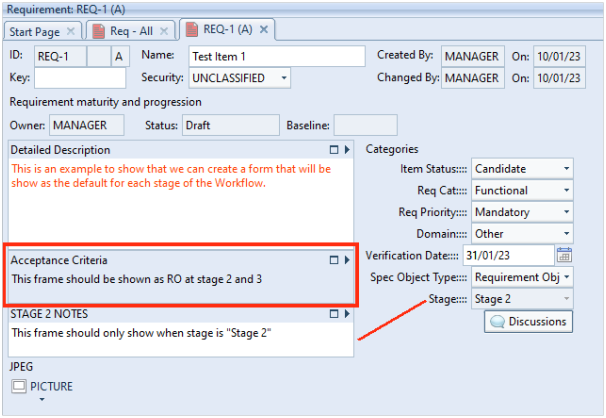
When you open the item again, you will see that the Stage category is set to Stage 2 and will use the Stage 2 form that shows the STAGE 2 NOTES frame and the Acceptance Criteria is read-only:

Item showing stage 2
Item in form showing stage 2

Advancing the item again uses the form that has been created for Stage 3 and so on.

Summary

WorkBench allows you to create a specific form for each stage of your workflow. This can be particularly useful if the frames, categories or attributes only need to be shown at certain stages of your process. It would simplify the user interface for the users that are modifying the items as they would not be presented with information that might be irrelevant to their task.