
How do I change the text size in the Cradle UI?

Many of us spend long periods of time working at our computer screens. Consequently, eye strain can become a serious problem. Also, we can sometimes be more productive if we can maximise the amount of information shown. Hence, changing the text size used in the Cradle UI can help in both of these cases, and in several other situations as well.

Maximised Data Display Area

Read articles covering how to maximise the screen area available to display information or drawings.

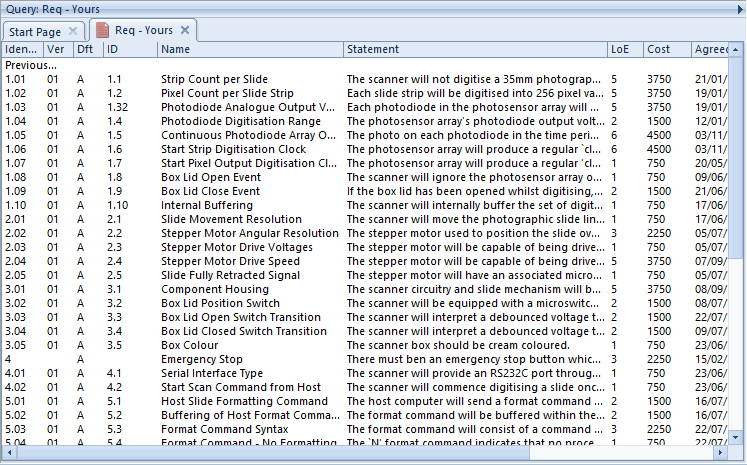
For comparison, if you use all of the tips described in that other blog post, the UI will have a maximised data display area and will appear like this:
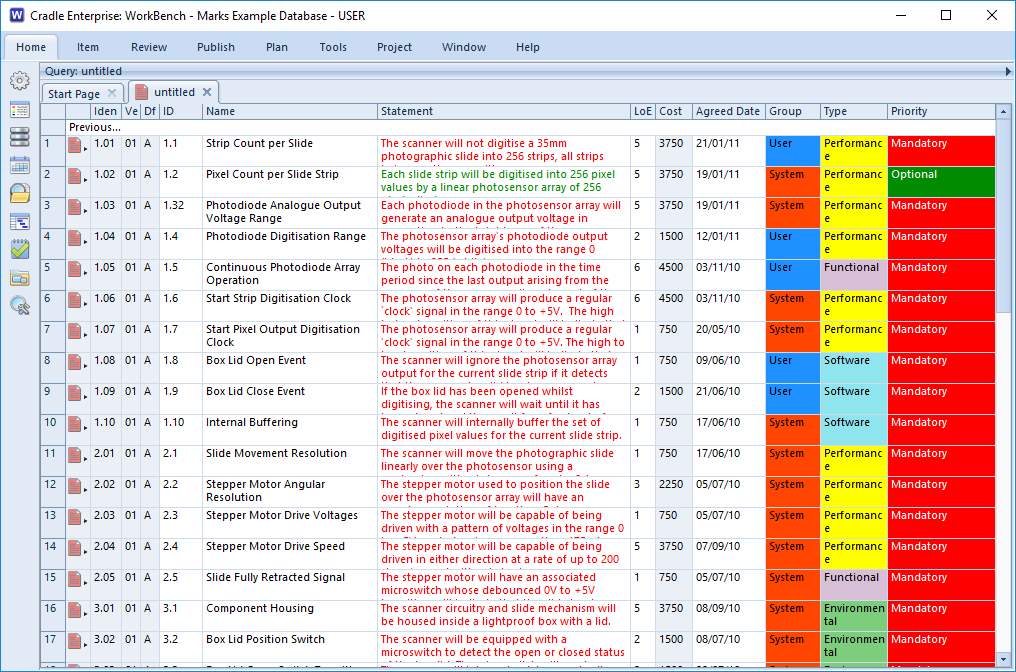
normal text size in 3SL Cradle RM SE Tool
Display in Normal Text

Increase Text Size

You can increase the size of text used in the UI by setting the Text size user preference to Large:
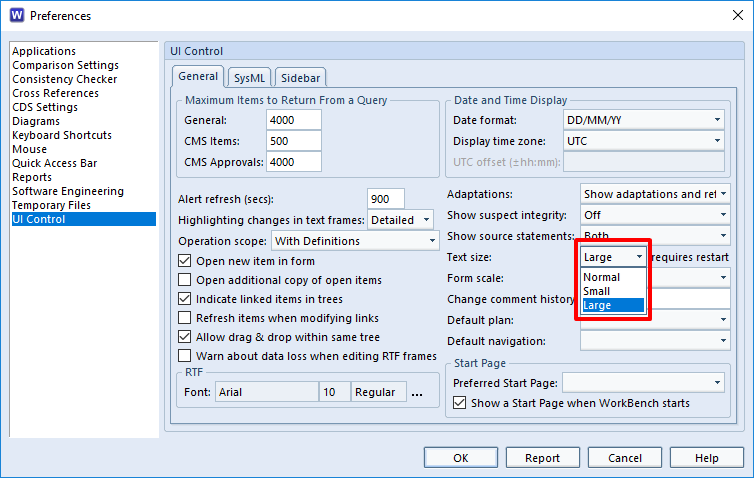
set large text size in 3SL Cradle RM SE Tool
Set Large Text Size

You must re-start WorkBench after making this change.

Using the larger text, the above query and view will be shown like this:
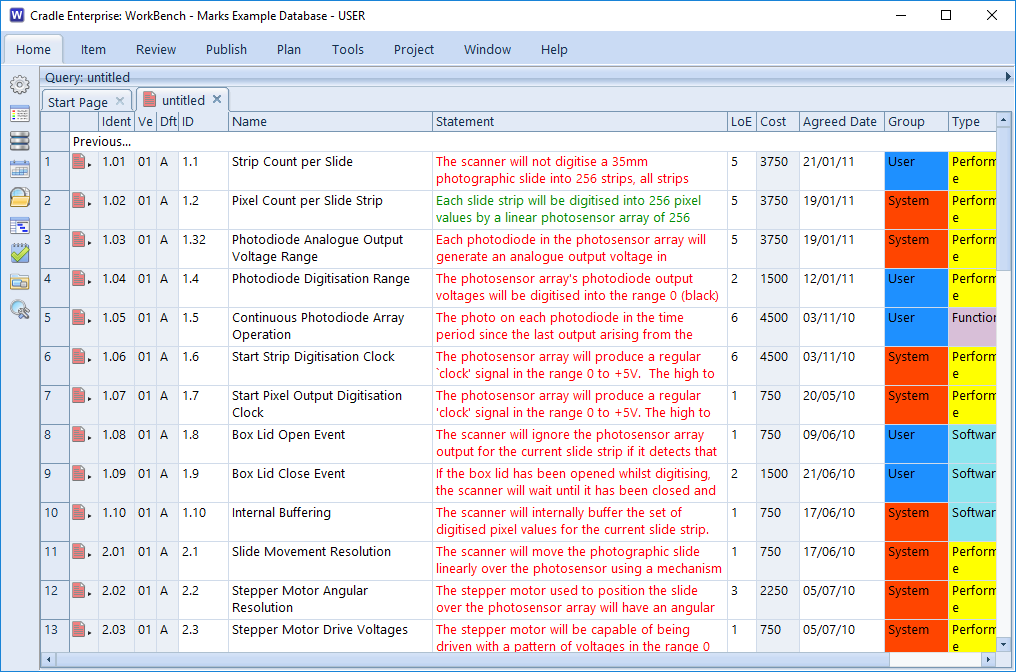
large text size in 3SL Cradle RM SE Tool
Display in Large Text Size

Decrease Text Size

You can decrease the size of text used in the UI by setting the Text size user preference to Small:
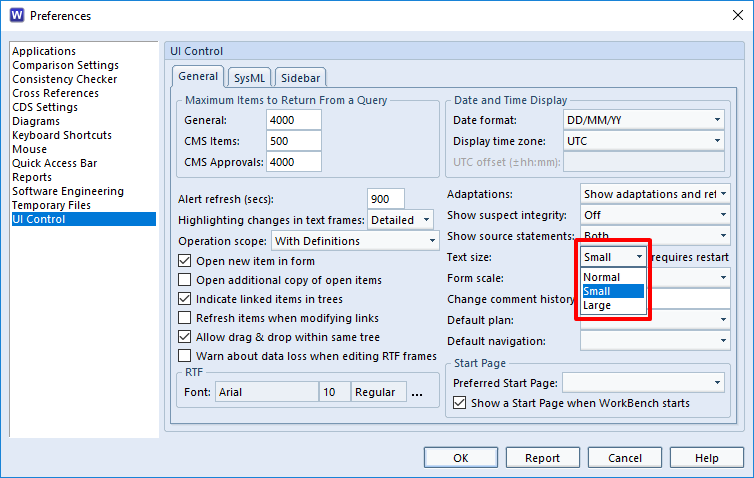
set small text size in 3SL Cradle RM SE Tool
Set Small Text Size

You must re-start WorkBench after making this change.

Using the smaller text, the above query and view will be shown like this:
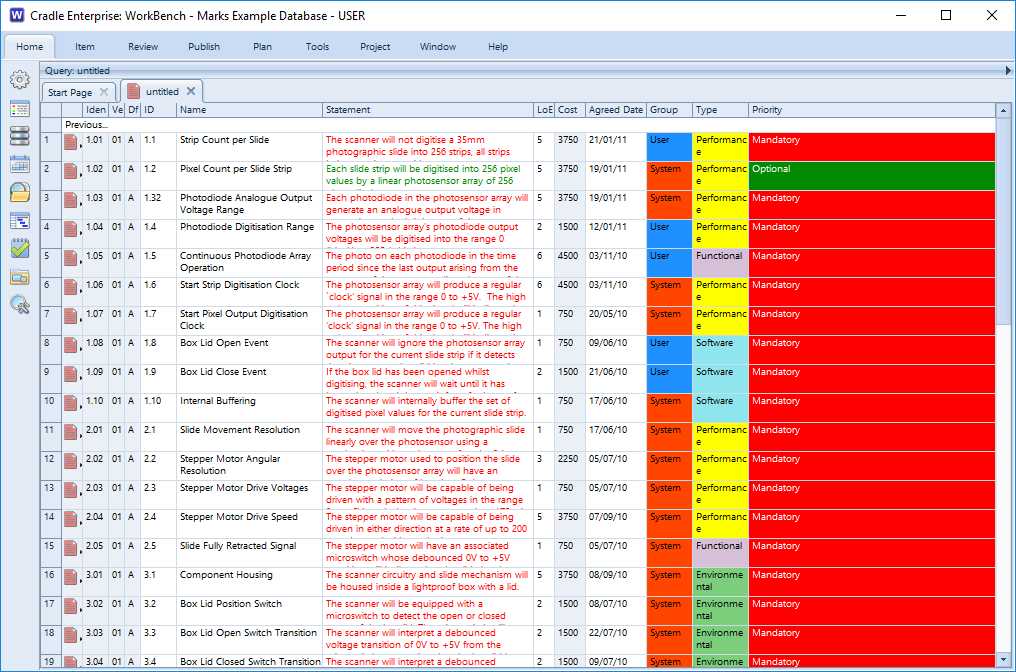
small text size in 3SL Cradle RM SE Tool
Display in Small Text Size

Uses

Cradle provides several options to maximise the screen area used to display information. You can change a user preference to change the size of text used throughout the UI.

You can use these in combination to:

  • Simply see bigger text and reduce the risk of eye strain
  • Reduce the risk of eye strain and also maximise the display area so you do not reduce the amount of information shown in the UI
  • Use smaller text because you are using a low display resolution and Cradle is using text that is needlessly large for your display
  • Reduce the size of text and also maximise the display area because you have a large screen and good eyesight and you must have the maximum possible data visible, particularly when you are using multiple panes to display multiple sets of information at the same time
Tree Style

You can find items in a Cradle database by running a query. For example, you can use the pre-defined queries in the Quick Access Bar at the bottom of the UI. Once the query has run, the results are shown in a display style. Tree style is one of the four styles available:

A view is used to specify which parts (attributes) of the items will be shown. A display style controls how these attributes will be displayed, and the facilities that are available to you.

Tree Style

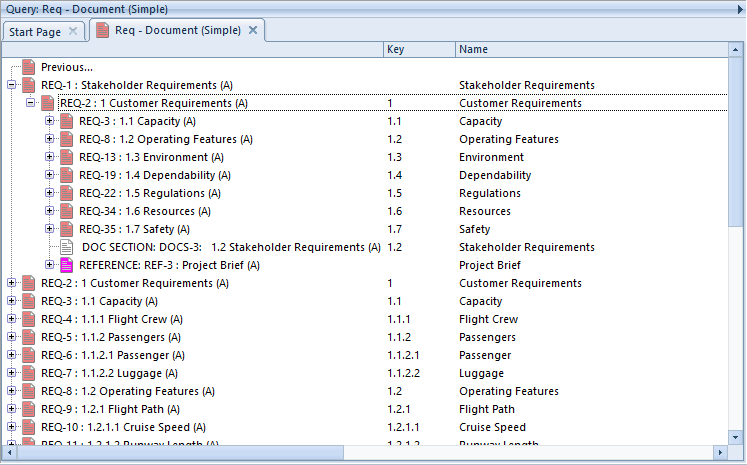
This is the second most frequently-used of the display styles after table style. It displays each item as a node in a tree, with a set of columns for the other attributes:

display items using tree style in 3SL Cradle RM SE Tool
Items Shown in Tree Style

There are two views used to display trees:

  • A view that specifies the contents of the node shown in the tree. You specify this view in the schema for the item type.
  • A view that specifies the attributes shown in columns to the right of the tree

To have items displayed in this style:

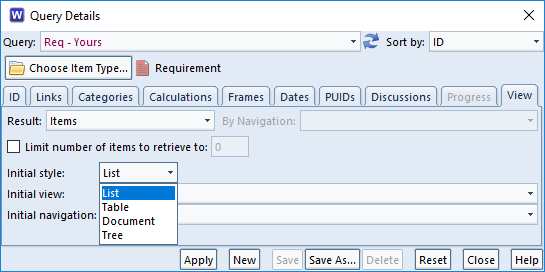
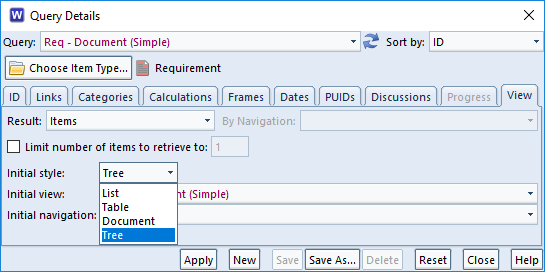
  • Specify it in the query to be run:
choose tree style in a query in 3SL Cradle RM SE Tool
Specify Tree Style in a Query
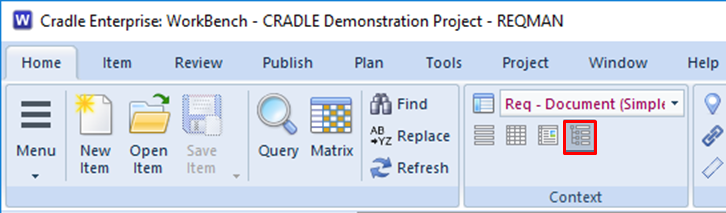
  • Also, select it from the Context group in the Home tab:
choose tree style in the UI in 3SL Cradle RM SE Tool
Choose Tree Style in the UI Ribbon
  • Or, right click and choose Style -> Tree from the context-sensitive menu
  • Finally, press <CTRL> and 4

Facilities

  • Use the left mouse button to select individual items
  • You can select a groups of items by selecting the first and then pressing <SHIFT> and the left mouse button to select the end of the group
  • Press <CTRL> and the left mouse button to select or de-select individual items
  • You can shrink and widen the display columns. Move your cursor to the edge of a column heading and the cursor will become a pair of arrows. Press, drag and release the left mouse button to change the column’s width.
  • You can follow cross references by expanding the tree node for the item. Cradle will find all cross references to and from the item, select which cross references to use, and display the items at the other end of these cross references as new nodes in the tree.
  • Use drag-and-drop items between trees to create cross references between the items
  • Drag-and-drop items inside a hierarchy of the same type of items to reorder that hierarchy and automatically rebuild the hierarchical numbering within it

You can expand a tree node by:

  • Click its + button
  • Select the text of the tree node and press: +
  • Select the text of the tree node, right click, and choose Expand from the menu
  • Double click on the text of the tree node

You can collapse a tree node by:

  • Click its – button
  • Double-click on the text of the tree node
  • Select the text of the tree node and press: –
  • Select the text of the tree node, right click, and choose Collapse from the menu

Advantages

The advantages of tree style are that it is:

  • The simplest way to explore items and their relationships
  • A convenient method to create cross references
  • The easiest way to reorganise a hierarchy of items

If you want to do anything with cross references between items, or to work in a hierarchy of items, then this is the best display style to use.

Disadvantages

The disadvantages of tree style are that:

  • It provides a limited ability to display information
  • You cannot edit information directly

Summary

Tree style is the most convenient method to work with cross references within a set of items and between one set of items and other sets of information.

Therefore, we recommend this style whenever you need to work with cross references between items and inside hierarchies.

Document Style

You can find items in a Cradle database by running a query. For example, you can use the pre-defined queries in the Quick Access Bar at the bottom of the UI. Once the query has run, the results are shown in a display style. Document style is one of the four styles available:

A view is used to specify which parts (attributes) of the items will be shown. A display style controls how these attributes will be displayed, and the facilities that are available to you.

Document Style

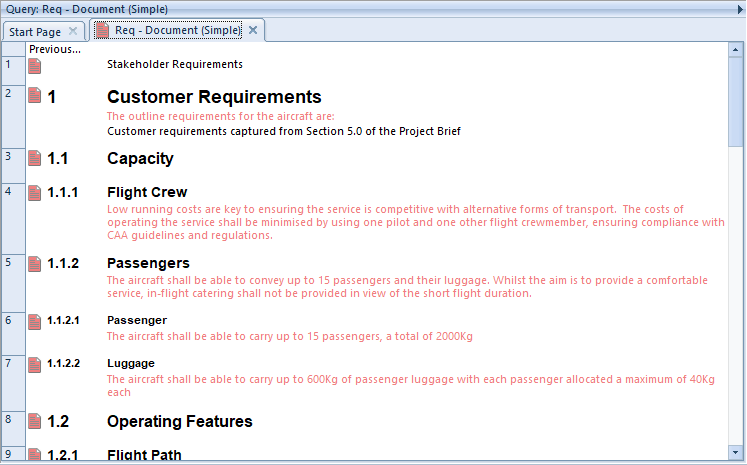
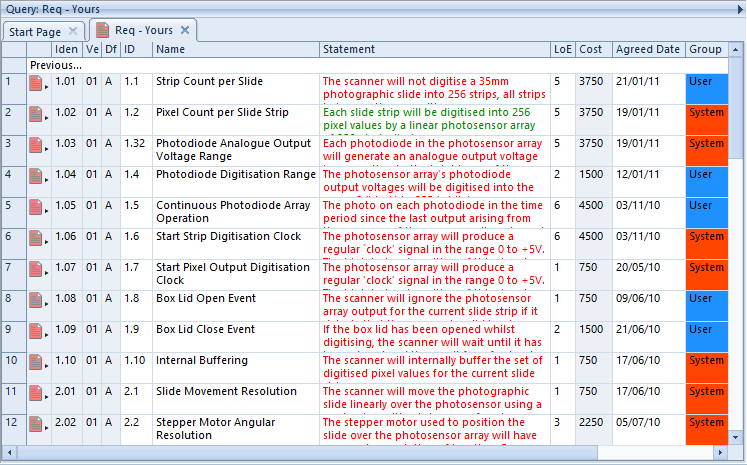
This is the second most flexible of all the display styles. It displays each item as a set of one or more rows and one or more columns (as controlled by the view), with invisible borders around each of the cells. You can edit items directly in this display style.

display items using document style in 3SL Cradle RM SE Tool
Items Shown in Document Style

This display style is similar to table style, except that:

  • The height of each item’s row is set by the information to be shown. So some rows are shallow and other rows are deep. If an attribute contains no data, its height will be close to zero.
  • Different sized fonts are used to display the first row in the view. The size of the font is based on the level of the item being shown. This level is based on the number of dots (periods) in the first attribute shown in the row. This is typically the Key, or whatever attribute you may have specified to hold the item’s hierarchical number.
  • The borders around the rows and columns are invisible

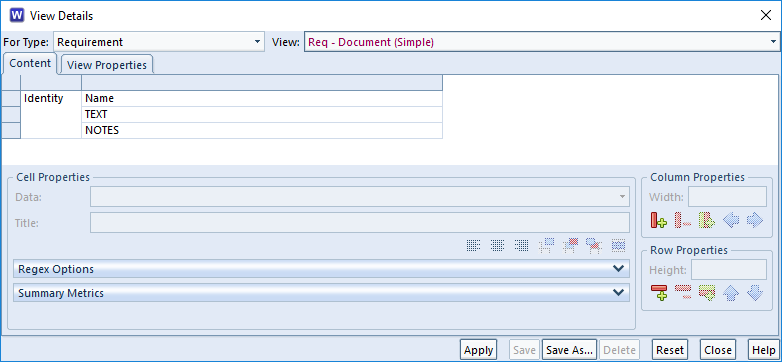
For document style, you should use views that show attributes in successive rows, rather than successive columns. For example:

view to items using document style in 3SL Cradle RM SE Tool
Arrangement of Attributes in a View for Document Style

The result is that items are displayed in a style that looks like a document, with large font for section headings and smaller fonts used for subsection headings.

To have items displayed in this style:

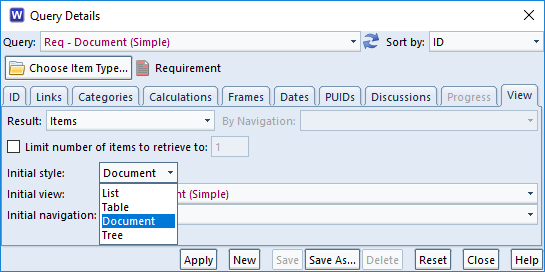
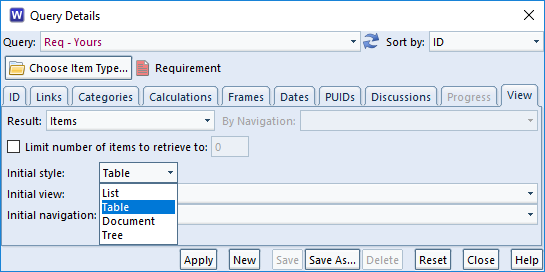
  • Specify it in the query to be run:
choose document style in a query in 3SL Cradle RM SE Tool
Specify Document Style in a Query
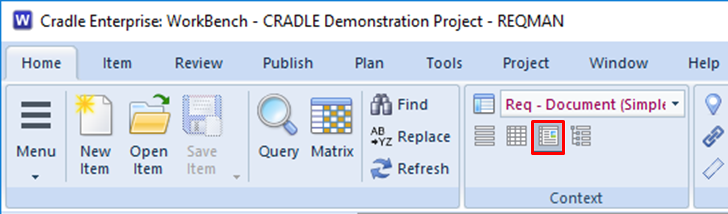
  • Also, select it from the Context group in the Home tab:
choose document style in the UI in 3SL Cradle RM SE Tool
Choose Document Style in the UI Ribbon
  • Or, right click and choose Style -> Document from the context-sensitive menu
  • Finally, press CTRL and 3

Facilities

Document style provides a wide range of faciltiies.

Selecting Items

  • Use the left mouse button to select individual items
  • You can select a groups of items by selecting the first and then pressing SHIFT and the left mouse button to select the end of the group
  • Press <CTRL> and the left mouse button to select or de-select individual items

Changing the Display

  • You can shrink and widen the display columns. Move your cursor to the edge of a column heading and the cursor will become a pair of arrows. Press, drag and release the left mouse button to change the column’s width.
  • You can move any row or column in the view. Move your cursor onto any cell border and the cursor will become a pair of arrows. Press, drag and release the left mouse button to move that border.
  • By default, all rows are displayed with different heights, you can increase or decrease the height of any row
  • You can sort the data in any column. Click the column heading and choose a sort order, either ascending or descending, in either a case-sensitive or case-insensitve manner (this only applies to languages that have upper-case and lower-case characters)
  • Tooltips are displayed for each column. Move your cursor into a column heading and after a second, a description of that attribute will be shown. You can enter these descriptions in the schema.
  • You can see tooltips for some attribute values. Move your cursor into a cell that displays a category with a pick-list of possible values. A tooltip appears containing a description of that category and category value. You can enter these descriptions in the schema.

Exploring Data

  • You can expand rows to follow cross references. Double-click the heading for an item’s row and that row will expand to show one new row for each item linked to the original item. Repeat this as many times as you like.
  • You will see the level of any expanded row as the number of dots in its row heading
  • You can collapse rows by double-clicking the row heading.

Editing Data

  • You can edit items directly Click inside any cell. If you have RW access to the item, Cradle locks the item so you can edit it.

Advantages

The advantages of document style are that it is:

  • Flexible. You can adjust the display and sort information.
  • Navigable. You can explore the database by expanding rows to follow cross references.
  • Editable. You can edit information through the display style.
  • Readable. All items are shown with a display height to display their entire contents.

Disadvantages

The disadvantages of document style are that:

  • It takes much longer to display than list style or tree style
  • The rows displaying information are of different heights, so you may not see many items at the same time. You may need to scroll more than in other display styles.

Summary

Document style is the second most flexible of Cradle’s four display styles, after table style. It is not the quickest style to generate, but it does provide a familiar document-like view of information and a lot of capability.

Therefore, we recommend document style whenever you want to display items in a document format. This can be very helpful for users who are more familiar with using documents, rather than data-orientated tools.

Yorkshire Day – 1st August 2018

Celebrating Yorkshire Day on 1st August 2018

Eyup! Today, at 3SL in Cumbria, we are celebrating another great UK county,  our neighbours in Yorkshire.

What better way to celebrate, than with a great cup of Yorkshire tea? We all know engineers from builders to space scientists alike need a good brew to function!

From concept to creation, you can see there are steps to follow when making a good cup of tea, just as there are steps involved for anything we create. From the initial requirements to the final product it’s always best to follow a method, ensure traceability and record the details. The result will be a good quality product with repeatability, easy change management and success all round. “Cheers”

So, if you’re thinking of fugglin with a shortcut in your next project, don’t be a claht’ead, use a bit of gumption and choose the right tools and methods for the job. Cradle just makes it easier!

OK, mash over, back to tew.


Table Style

You can find items in a Cradle database by running a query. For example, you can use the pre-defined queries in the Quick Access Bar at the bottom of the UI. Once the query has run, the results are shown in a display style. Table style is one of the four styles available:

A view is used to specify which parts (attributes) of the items will be shown. A display style controls how these attributes will be displayed, and the facilities that are available to you.

Table Style

This is the most flexible of all the display styles. It displays each item as a set of one or more rows and one or more columns (as controlled by the view), with borders around each of the cells. You can edit items directly in this display style.

display items using table style in 3SL Cradle RM SE Tool
Items Shown in Table Style

To have items displayed in this style:

  • Specify it in the query to be run:
choose table style in a query in 3SL Cradle RM SE Tool
Specify Table Style in a Query
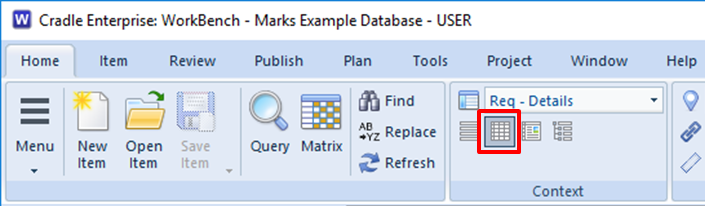
  • Also, select it from the Context group in the Home tab:
choose table style in the UI in 3SL Cradle RM SE Tool
Choose Table Style in the UI Ribbon
  • Or, right click and choose Style -> Table from the context-sensitive menu
  • Finally, press <CTRL> and 2

Facilities

Table style provides a wide range of facilities.

Selecting Items

  • Use the left mouse button to select individual items
  • You can select a groups of items by selecting the first and then pressing SHIFT and the left mouse button to select the end of the group
  • Press <CTRL> and the left mouse button to select or de-select individual items

Changing the Display

  • You can shrink and widen the display columns. Move your cursor to the edge of a column heading and the cursor will become a pair of arrows. Press, drag and release the left mouse button to change the column’s width.
  • You can move any row or column in the view. Move your cursor onto any cell border and the cursor will become a pair of arrows. Press, drag and release the left mouse button to move that border.
  • By default, all rows are displayed the same height, but you can increase the height of any row
  • You can sort the data in any column. Click the column heading and choose a sort order, either ascending or descending, in either a case-sensitive or case-insensitve manner (this only applies to languages that have upper-case and lower-case characters)
  • Tooltips are displayed for each column. Move your cursor into a column heading and after a second, a description of that attribute will be shown. You can enter these descriptions in the schema.
  • You can see tooltips for some attribute values. Move your cursor into a cell that displays a category with a pick-list of possible values. A tooltip appears containing a description of that category and category value. You can enter these descriptions in the schema.

Exploring Data

  • You can expand rows to follow cross references. Double-click the heading for an item’s row and that row will expand to show one new row for each item linked to the original item. Repeat this as many times as you like.
  • You will see the level of any expanded row as the number of dots in its row heading
  • You can collapse rows by double-clicking the row heading.

Editing Data

  • You can edit items in a table. Click inside any cell in the table. If you have RW access to the item, Cradle locks the item so you can edit it.

Advantages

The advantages of table style are that it is:

  • Flexible. You can adjust the display and sort information.
  • Navigable. You can explore the database by expanding rows to follow cross references.
  • Editable. You can edit information through the display style.
  • Compact. All items are shown with the same display height.

Disadvantages

The disadvantages of table style are that:

  • It takes longer to display than list style or tree style
  • The rows displaying information are all the same height, so you may have to click in a cell or expand a row border to see all of the information in some attributes

Summary

Table style is the most flexible of Cradle’s four display styles. It is not the quickest to generate, but it provides the most capability.

Therefore, we recommend table style as the best general purpose display style in Cradle. Unless you need something provided by a different display style, use table style.

List Style

You can find items in a Cradle database by running a query. For example, you can use the pre-defined queries in the Quick Access Bar at the bottom of the UI. Once the query has run, the results are shown in a display style. List style is one of the four styles available:

A view is used to specify which parts (attributes) of the items will be shown. A display style controls how these attributes will be displayed, and the facilities that are available to you.

List Style

This is the simplest of the four display styles. It shows each item as a single line of text, whose fields are controlled by the view that you have chosen:

display items using list style in 3SL Cradle RM SE Tool
Items Shown in List Style

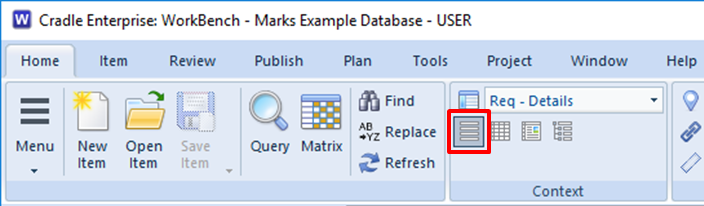
To have items displayed in this style:

  • Specify it in the query to be run:
choose list style in a query in 3SL Cradle RM SE Tool
Specify List Style in a Query
  • Also, select it from the Context group in the Home tab:
choose list style in the UI in 3SL Cradle RM SE Tool
Choose List Style in the UI Ribbon
  • Or, right click and choose Style -> List from the context-sensitive menu
  • Finally, press CTRL and 1

Facilities

  • Use the left mouse button to select individual items
  • You can select a groups of items by selecting the first and then pressing SHIFT and the left mouse button to select the end of the group
  • Press <CTRL> and the left mouse button to select or de-select individual items
  • You can shrink and widen the display columns. Move your cursor to the edge of a column heading and the cursor will become a pair of arrows. Press, drag and release the left mouse button to change the column’s width.

Advantages

The advantages of list style are that it is:

  • The fastest display style. Your view will appear most quickly in list style.
  • The most compact display style

If you simply want to run a query as quickly as possible so you can select some items and do something with them, then this is the best display style to use.

Disadvantages

The disadvantages of list style are that:

  • It provides the fewest capabilities
  • You cannot edit information directly

Summary

List style is the simplest and most compact of Cradle’s four display styles. It is quick and simple to generate.

Therefore, we recommend this style whenever you simply want items to be shown as quickly as possible, so you can do something to them.

Count the Shalls

‘Shall’ Counting

“Count the shalls!” This was one of the strangest introductions to Requirements Management that I’ve heard. Firstly as a young engineer I didn’t know what a ‘shall‘ was, let alone why I should count it. For those of you reading this thinking “… no Idea what he’s on about..” let me explain. A crude method of working out the size of a project requirement was to count the number of paragraphs containing the word ‘shall‘. This gave the number of mandatory contractual statements that must be met for the project. Paragraphs containing ‘should‘ or ‘may‘ could be ignored as they were ‘nice to haves‘ rather than obligations.

counting the shalls as a method of determining contractual requirements
Shalls

Limitations

There is some logic to the approach, if the statements have been written atomically. However, as a provider one should never presume the customer has written the requirements to the right level for ‘shall counting‘.  For example these two customers’s requirement  sets are wildly different.

  1. The vehicle shall carry a load of 500Kg
  2. The vehicle shall pass legal requirements for use on UK roads.

and

  1. The pipe insulation shall be provided in 1m lengths
  2. Insulation shall be installable with standard DIY tools such as a craft knife and tie-wraps, and not require specialist equipment.
  3. The insulation shall achieve a thermal conductivity of  0.033W/mK or lower
  4. The insulation shall pass BS EN11925-2 BL
  5. No component material shall be classed as hazardous to health under COSHH regulations 2002
  6. The wholesale price point shall be 20p / m or lower

On a ‘shall‘ count the first project seems easiest just two requirements. But seriously!  would you accept a customer level requirement like this, and price up the work and expect a happy customer?
Have a Ford Transit, job done.
Then you find the customer wants to crane the load on.  Secondly you find they need a tailgate lift to unload it. Additionally you find the product needs weather protection during transit and so on.

The second project has SMART requirements
S pecific
M easurable
A ttainable
R ealisable
T raceable
Count the shalls here, and the measure may be a little more meaningful.

Shoulds and Mays

Can you afford to ignore ‘shoulds‘ and ‘mays‘ ? Contractually you could argue they don’t matter, but in forming a meaningful customer relationship, they are still important. “The insulation should be a mute colour” could contractually be met with vivid red foam, but you’re unlikely to get repeat business.

When the customer has an idea of the implementation (OK, requirements purists, don’t have a coronary) then they are guiding you as to the options they see as most appropriate.  “The vehicle shall have a mechanism to remove the load at a customer site” could be met with a separate fork lift truck being supplied. However “The vehicle may have a powered tailgate lift, or a body mounted mini crane” suggests the customer is seeing these as preferred solutions. In costing a bid these should certainly be considered. However, if your vehicles come with built in vehicle body to floor conveyors, this could still be a viable solution for the customer. After discussion your system requirement, linked to your customer requirement may become “The vehicle shall be fitted with a 800Kg NWL body/floor conveyor ” Of course this requirement would also have extra data within or linked to it minuting the discussion with the customer where they agreed this would meet their requirement.

Solutions

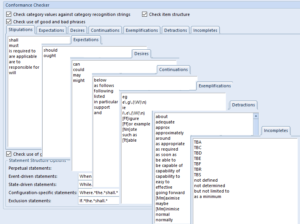
example of the types of language that should be evaluated automatically
Conformance Checker Settings

There are definitely merits  for someone or something to ‘count the shalls’. If you have 1678 requirements in your project and 1698 ‘shalls‘ you obviously have some non atomic requirements.  Running a Conformance Checker can validate the semantics, across your whole requirement set. What automated tools can’t do is look at the logic and complexity of the requirement. In these cases breaking your customer requirement into a number of domain specific system requirements ensures the level of the requirements against which you bid, design and build are truly SMART. Whilst unsurprisingly we advocate the use of a tool to manage your requirements, to link the User Requirements to the derived or system requirements, we don’t claim a tool will solve the problem of poor specification;  For that you need good, competent engineers, whose job is made easier by using the correct tools.


Using Sessions in the Cradle UI

The Cradle UI displays information inside tabs. These tabs are grouped into panes. You can design your Cradle UI with a set of panes grouped in nested rows and columns in your preferred layout. This layout is called a session. Using sessions is the easiest way to maximise your productivity with Cradle.

You can save your current layout of panes, and the tabs inside them, in a session. You can then restore this session when you login to Cradle. When you do this, Cradle will restore the panes, organise them in your preferred layout, and where possible, automatically recreate all of the tabs inside each pane by re-running queries and so on.

The result is that when you login to Cradle and specify a session, your Cradle UI will look the same as it did when you last logged-out.

This will save you a lot of time and help you to complete your work more quickly and effectively!

Working With Sessions

Using sessions is very easy:

  • You can save a session at any time
  • You can specify a session when you login.

Saving a Session

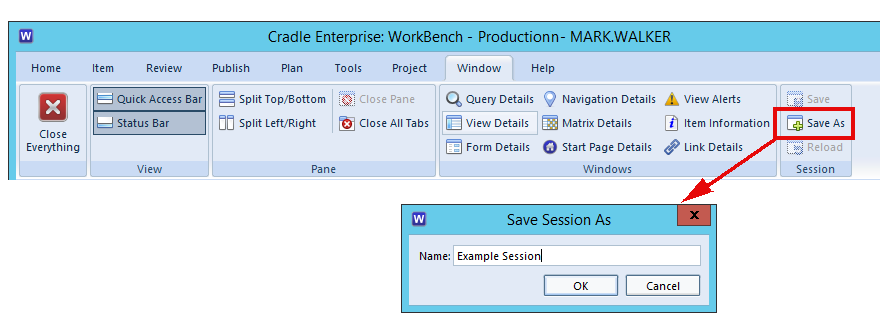
You can save your current WorkBench layout as a session by clicking Save As in the Session group in the Window tab in the UI’s ribbon:

Using Sessions in 3SL Cradle WorkBench
Save a Session

You will be asked to enter a name for the session. When you are working in WorkBench with a session, you can update the saved session to match your current layout of panes and tabs by clicking Save,

Using Sessions

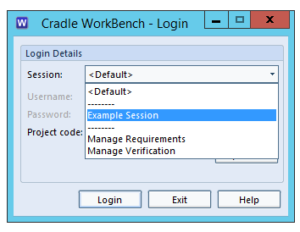
When you next login to Cradle WorkBench, you can choose your session from the drop-down list in the Login dialog:

Using Sessions in 3SL Cradle WorkBench
Specify a Session at Login

and your layout of panes and tabs in the session will be restored, re-running queries and so on as necessary.

You can also reload the session that you chose at login by selecting Reload. from the Session group in the Window tab in the UI’s ribbon.

Using Tabs in the Cradle UI

The Cradle WorkBench UI is divided into panes. Each pane is a region that can contain one or more tabs. A tab is a container with a selectable name and a rectangular area that contains the results of running a query, report, metric or graph, or a single item that is being edited. Using tabs is a way to maximise your productivity with the Cradle UI by helping you to arrange queries, items and other information, either so you can see everything at the same time, or so the information is presented in a layout that you find convenient.

Layout of a Tab

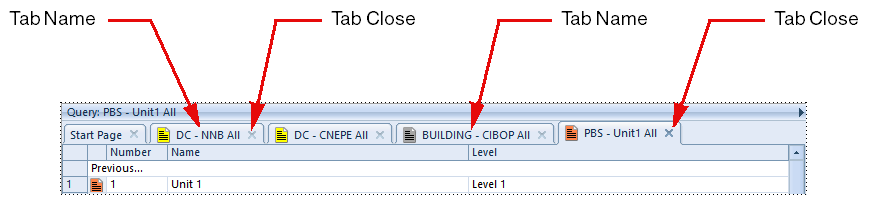
A tab is a rectangular region in the Cradle UI that has a name, a close control and a rectangular region containing the result of a query, a report, a metric, a matrix, a pivot table, or a dashboard:

Using Tabs in 3SL Cradle WorkBench
Tabs in a Pane in the Cradle UI

Tabs exist inside panes.

Each pane can contain up to 16 tabs. You can have many panes open in the UI at the same time.

When you create a new tab, it will open in the currently-selected pane. So, if you run a query, that query will open in a new tab in the current pane. If you open an item, it will open in a tab in the current pane.

Tab Names

Each tab has a name, shown above it, that is name of the query, report, metric, graph or pivot table shown in the tab, or some details of the item shown in a form.

Using Tabs

Next to a tab‘s name is a button, you can click this button to close the tab.

You can also press CTRL-W to close a tab, or choose Close Tab from the context-sensitive menu that will appear if you right-click inside a tab.

You can move a tab between panes by:

  • Put your cursor in the name of the tab to be moved
  • Press the left mouse button
  • Drag into the new pane
  • Release the mouse button

Horizontal or vertical scrollbars will appear if a tab’s contents are larger than the screen area available. You can increase the area used to display a tab by either:

  • Use the sash control to increase the size of the pane that contains the tab
  • Maximise the pane containing the tab using its pane control menu, or simply double-clicking the pane’s legend

Using Panes in the Cradle UI

The Cradle WorkBench UI is divided into panes. Each pane is a region that can contain one or more tabs. A tab is a container with a selectable name and a rectangular area that contains the results of running a query, report, metric or graph, or a single item that is being edited. Using panes is a way to maximise your productivity with the Cradle UI by helping you to arrange queries, items and other information, either so you can see everything at the same time, or so the information is presented in a layout that you find convenient.

Layout of a Pane

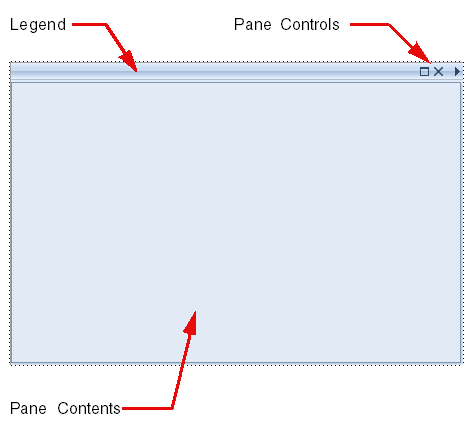
A pane is a rectangular region in the Cradle UI that has a legend and a set of controls:

Using Panes in 3SL Cradle WorkBench
A Pane in the Cradle UI

The pane’s contents are one or more tabs. Each tab contains the results of a query, report, matrix, metric, graph or pivot table, or an item in a form.

Each pane can contain up to 16 tabs. You can have many panes open in the UI at the same time.

When you create a new tab, it will open in the currently-selected pane. So, if you run a query, that query will open in a new tab in the current pane. If you open an item, it will open in a tab in the current pane.

Pane Legend

The pane’s legend appears when you select a tab inside it. The legend will be the name of the tab that you have selected.

You can double-click the legend to maximise the pane. This will maximise the pane to fill the WorkBench UI, overlaying all other panes. When a pane is maximised, double-click the legend again to minimise the pane. This will restore the pane to its original size.

Pane Controls

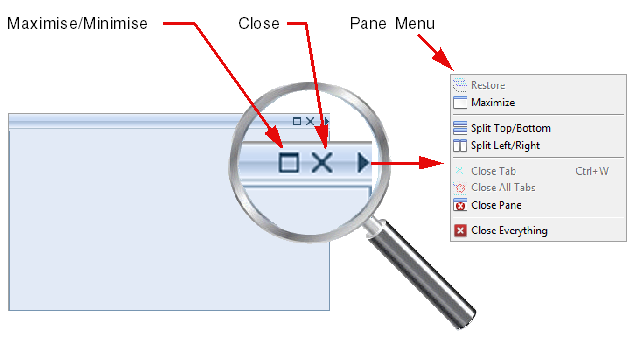
Each pane has a set of controls. These controls are the most important part of using panes to control the Cradle UI:

Using Panes in 3SL Cradle WorkBench
Pane Controls and How to Access Them

You can use these controls to:

  • Maximise the current pane, an alternative to double-clicking its legend
  • Close the current tab, if any
  • Empty the pane by closing all of its tabs
  • Close the pane, and all tabs inside it
  • Close all panes

More usefully, you can also:

  • Split the pane horizontally into two panes
  • Split the pane vertically into two panes

Using Panes

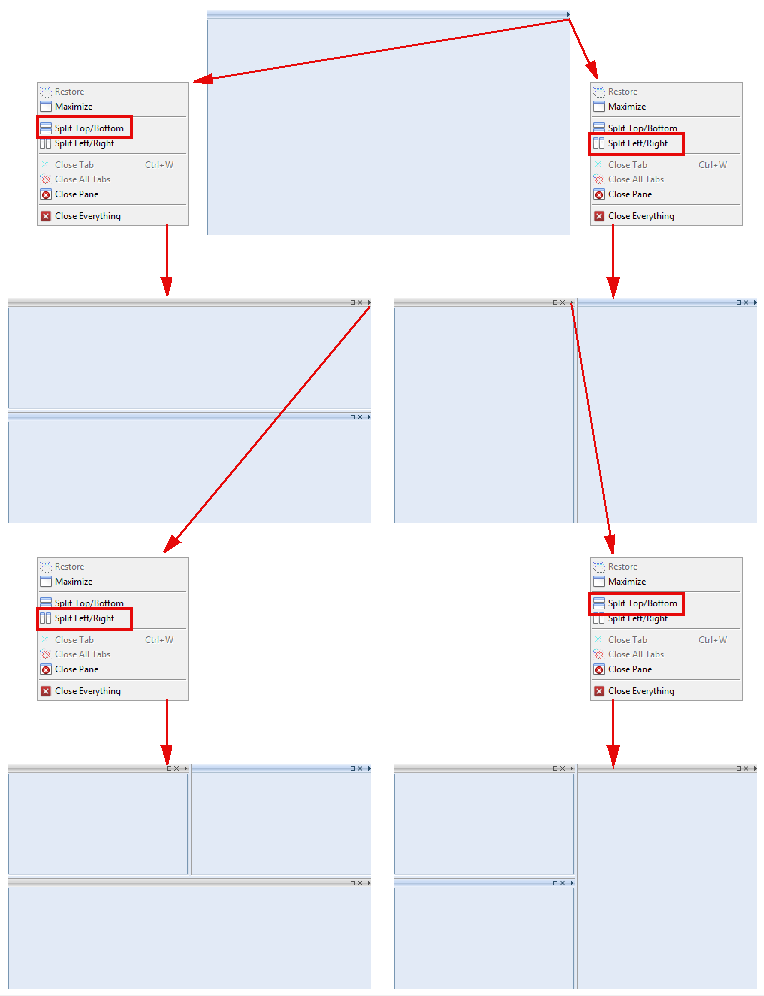
You can split panes any number of times. This divides the UI into an arrangement so you can see several queries at the same time, or so you can see many items at the same time.

As an example:

Using Panes in 3SL Cradle WorkBench
Creating New Panes by Splitting

A large screen will be helpful!

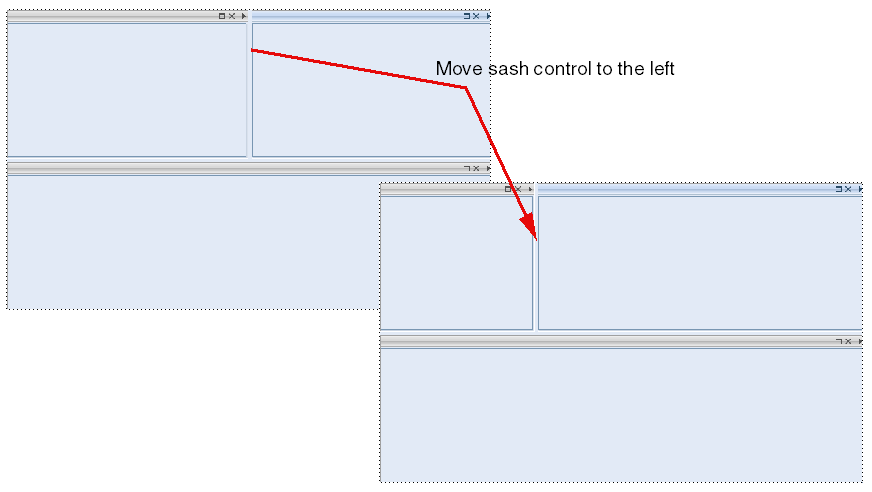
There are sash controls between panes. Move your cursor between two panes and it will change to a pair of arrows. If you press, drag and release the left mouse button, you can adjust the relative sizes of adjacent panes. This will proportionately adjust the sizes of all tabs inside these panes. For example:

Using Panes in 3SL Cradle WorkBench
Adjust Pane Sizes with Sash Controls